
Members Overview
The Members page focuses on managing individual audience members. It provides access to detailed member information and tools for performing targeted actions.
Search, Filter, and Sort:
Use the Search bar at the top of the interface to locate members by name, email, or other identifiers.
Apply filters to narrow the view by criteria such as loyalty tier, activity, or membership status.
Sort options, located to the left of the search bar, allow you to reorder the member list by attributes such as name, join date, or activity level.
Member List:
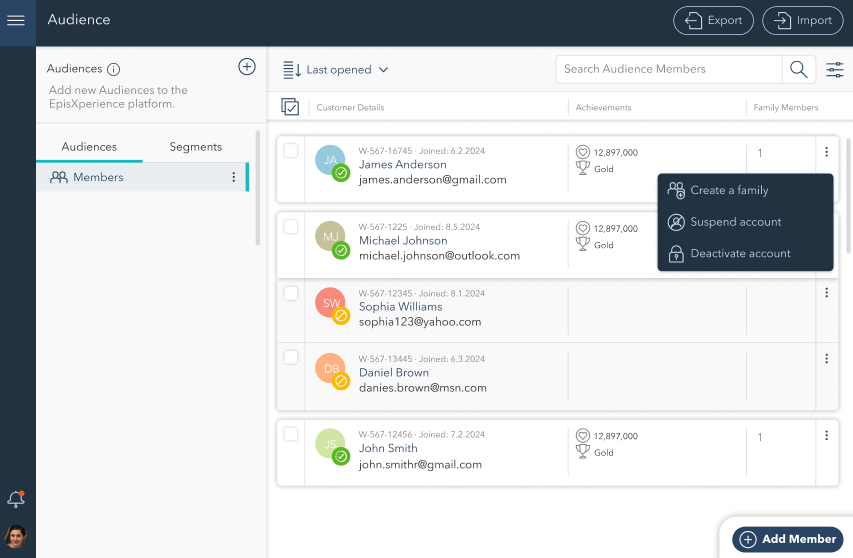
Displays each member’s name, email, membership status, loyalty tier, and the number of associated family members.
Members in a family are visually grouped. The family parent is clearly marked, with family members appearing below them in grayed-out fields.

Family functionality allows grouping individual audience members into a cohesive family unit. This feature is particularly useful in loyalty programs where members can share benefits or points, creating a collaborative experience within the group.
Actions Menu:
Accessible via the three-dot icon next to each member's details. The following actions are available:
Create a Family: For members not already in a family, this action allows grouping the member into a new family for shared benefits.
Suspend Account: Temporarily disables the member's account, preventing access.
Deactivate Account: Permanently deactivates the member's account.
Member Details: Clicking on a member opens their detailed profile, where you can view and edit their information, including loyalty points, connected devices, and account settings. More about editing member profiles is described in the Member Details section.

An orange icon next to a member's initials indicates that the member is in Draft status, signifying that their account setup is incomplete or pending activation.
Add Member
The Add Member button at the bottom-right corner allows the quick addition of a new audience member. Fill in required details and assign the member to a family or segment if applicable.
Creating a Family
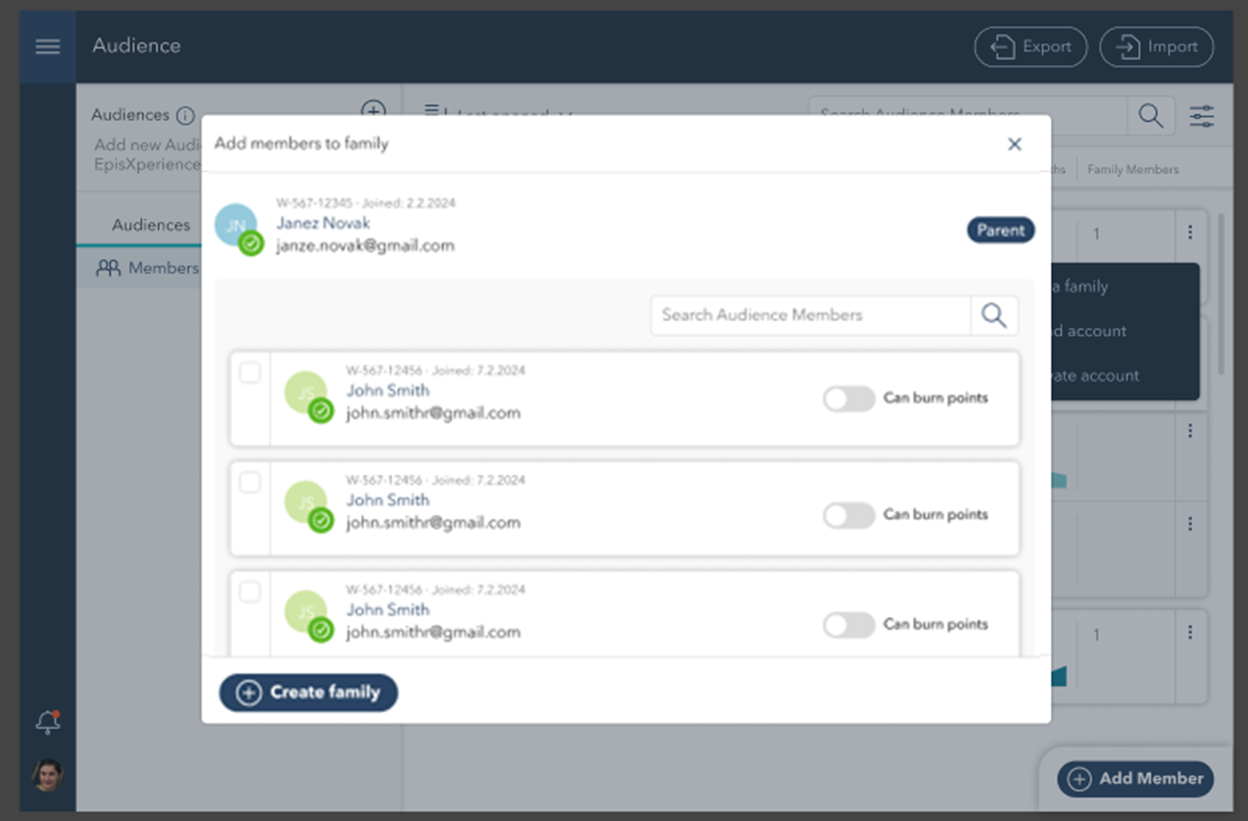
To create a new family, select a Parent Member, add family members using the search function, and configure their Can Burn Points permissions.
Click Create Family to finalize the setup. If adding members to an existing family, use the Add to Family option instead.
The list of family members is available under Member Details – Overview, where you can review and manage existing family connections.