
Member Account Overview
The Overview tab provides a summary of the member's key information and tools for managing their profile. This section is the primary interface for viewing and editing personal details, linked devices, loyalty accounts, family group settings, and custom properties.
Profile Overview
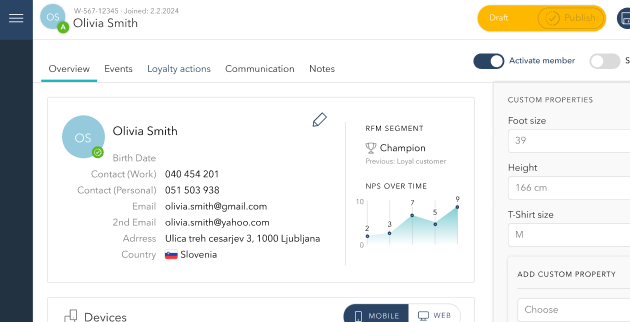
The Profile Overview section offers key personal and contact details about the member, insights into their membership loyalty, and tools to view and update this information.
Basic and Contact Information:
Displays the member's name, profile picture (or initials), and status icon. The icon indicates the member's current status: Draft (orange), Active (green), or Suspended (grey).
Includes birth date, phone numbers (categorized as Work or Personal), email addresses, and full address (street, city, postal code, and country).
Membership Insights:
The member's RFM Segment (e.g., Champion, Loyal Customer) is prominently displayed.
A graph visualizes the member's Net Promoter Score (NPS) over time, offering insight into satisfaction trends.
Editing Member Information
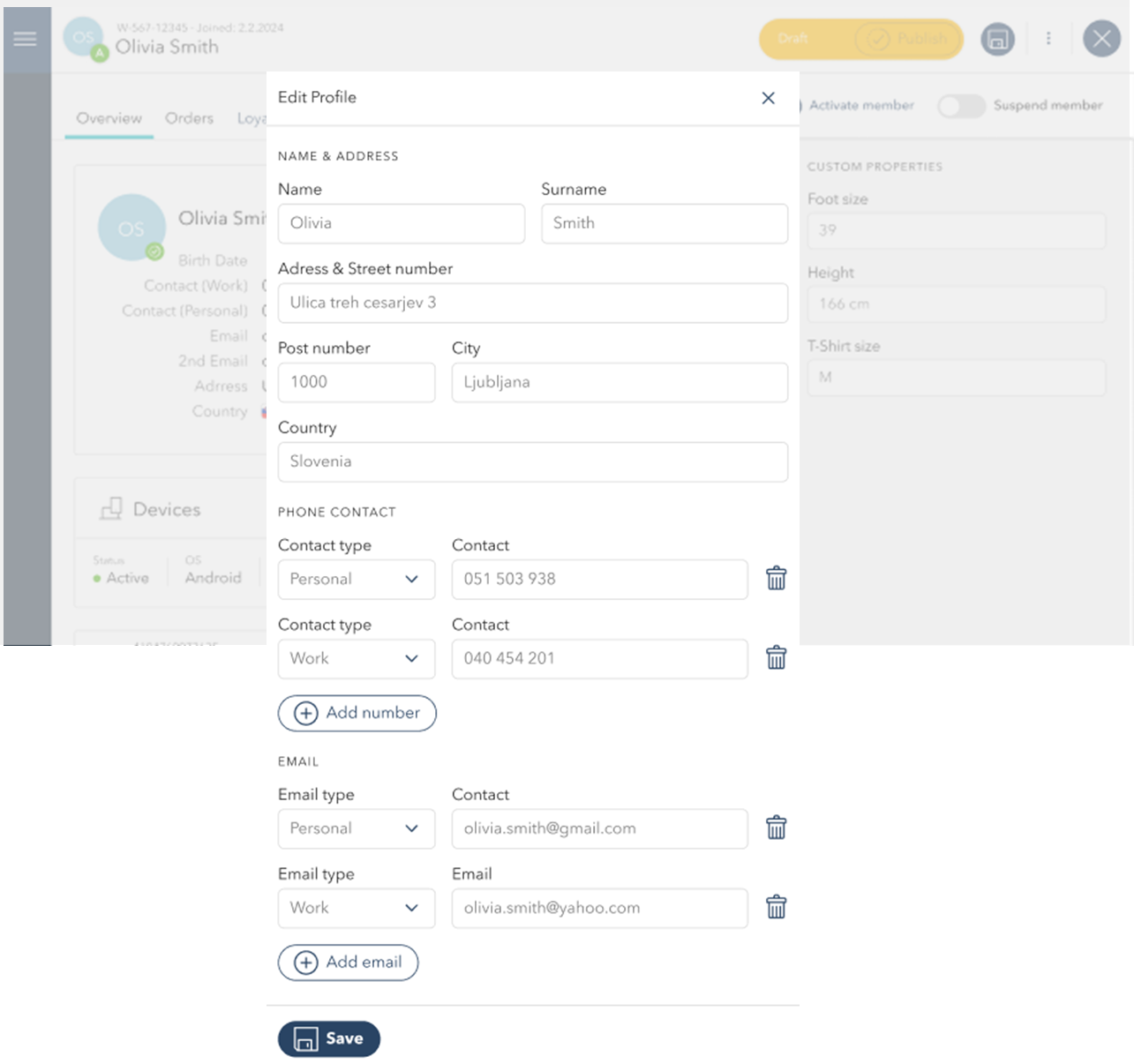
The Edit Profile button (pencil icon) allows you to update the member's personal and contact information. Clicking this button opens a detailed editing window where you can:
Modify name, address, phone numbers, and email addresses.
Add new contact details or remove outdated ones.
After making edits, click Save to finalize updates, which are instantly reflected in the member’s profile.
Connected Devices
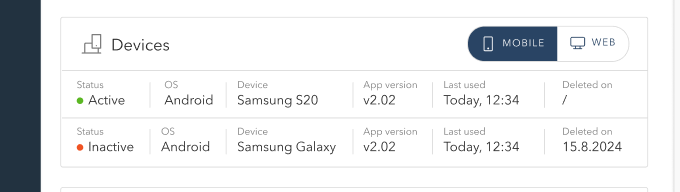
The Devices section provides a comprehensive overview of all devices linked to a member’s account. This feature helps track device activity and manage interactions with the platform across mobile and web environments.
Device List: Displays detailed information about connected devices, including:
Status: Indicates the device's current state as active or inactive (denoted by a green or red dot, respectively).
Operating System (OS): Specifies the operating system of the device (e.g., Android, iOS).
Device Name: Identifies the specific device model (e.g., Samsung S20, Samsung Galaxy).
App Version: Shows the installed app version on the device.
Last Used: Indicates the most recent time the device accessed the platform.
Deleted On: Records the date when the device was removed or marked as inactive.
Device Type Tabs: Quickly switch between Mobile and Web devices to view relevant details for each category.
Loyalty Account
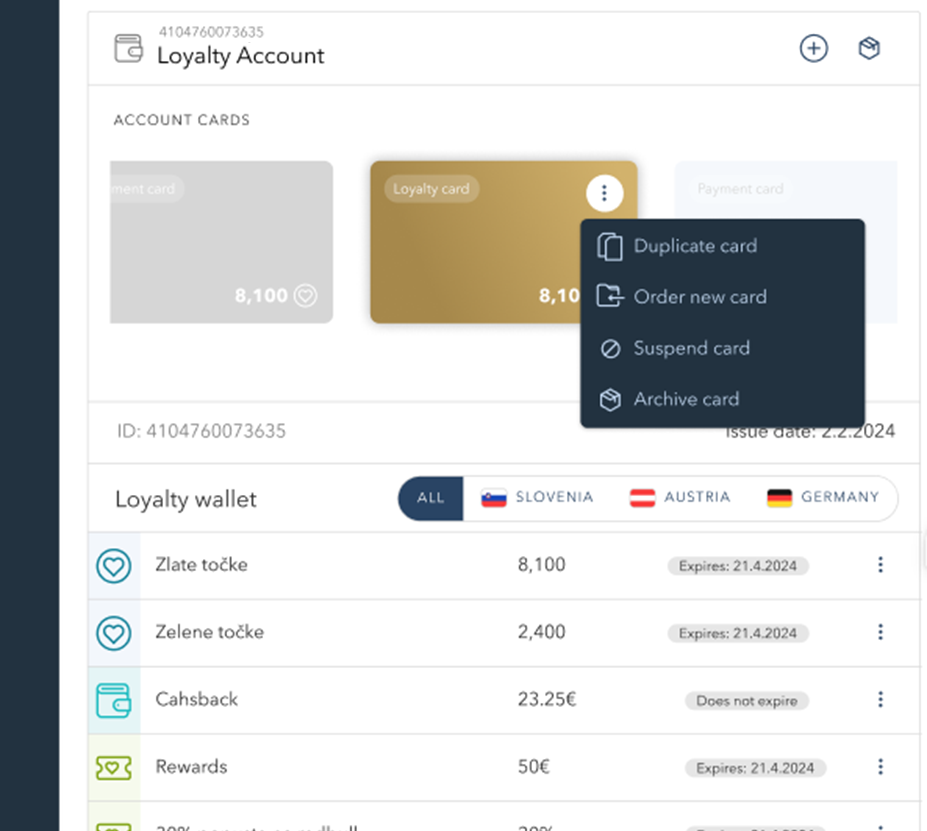
The Loyalty Account section provides an overview of all loyalty and payment cards linked to a member’s account. This section allows you to issue new cards, manage existing ones, and restore archived cards.
Managing Account Cards
Clicking the three-dot menu on a selected card provides the following options:
Duplicate Card – Creates a copy of the existing card.
Order New Card – Requests a replacement or additional loyalty card.
Suspend Card – Temporarily deactivates the card, restricting its use.
Archive Card – Moves the card to an inactive state, removing it from the active list.
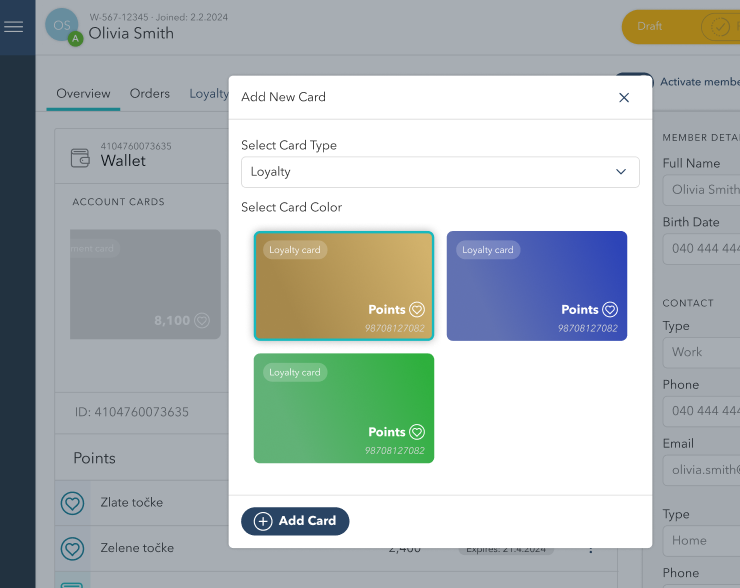
Add a New Card
To add a new card, click the plus icon in the Loyalty Account section.
This opens the Add New Card window, where you can:
Select the Card Type (e.g., Loyalty, Payment).
Choose the Card Color based on the available options.
Click Add Card to assign the new card to the member’s account.
Managing Archived Cards
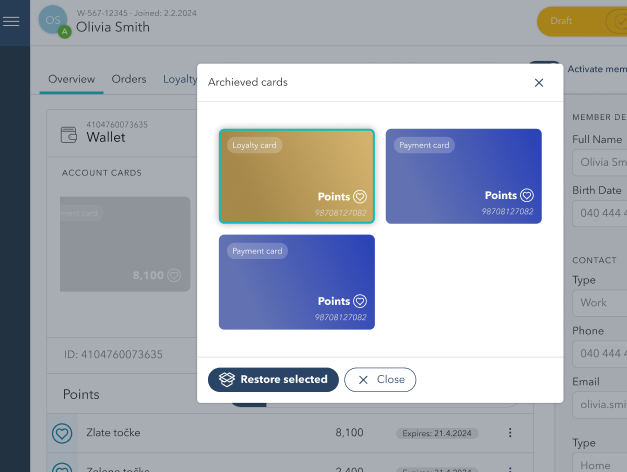
To access previously archived cards, click the box icon in the Loyalty Account section.
This opens the Archived Cards window, displaying all deactivated loyalty and payment cards.
Select cards and click Restore Selected to reactivate them.
Loyalty wallet
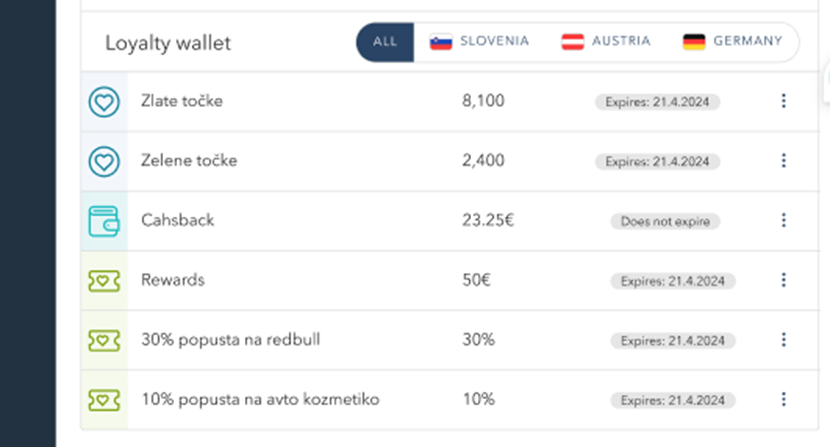
This section provides an overview of all loyalty points, cashback, and available discounts associated with the member’s account. It allows you to track balances, monitor expiration dates, and manage reward eligibility.
The displayed data can be filtered by country (in case the benefit is available in multiple countries) or viewed as a combined total under the All tab.
Each item includes:
Balance – Displays the available amount of points, cashback, or discount percentage.
Expiration Date – Indicates when the points or discounts will expire.
Options Menu – Clicking the three-dot menu next to each item allows for additional management actions.
Tier Overview
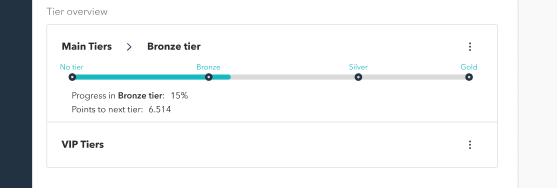
The Tier Overview section displays the member’s current status within the loyalty program and tracks their progress toward higher tiers. It helps monitor engagement levels and determine eligibility for tier-based benefits.
Main Tiers
This section shows the member’s current tier (e.g., Bronze) and their progress within it. The tier system consists of multiple levels (No Tier, Bronze, Silver, Gold), each with its own benefits and requirements.
Progress Indicator – A visual bar representing the percentage of progress in the current tier.
Points to Next Tier – Displays the number of points required to advance to the next tier.
VIP Tiers
If applicable, this section displays additional VIP membership levels for members with exclusive benefits.
Family Members
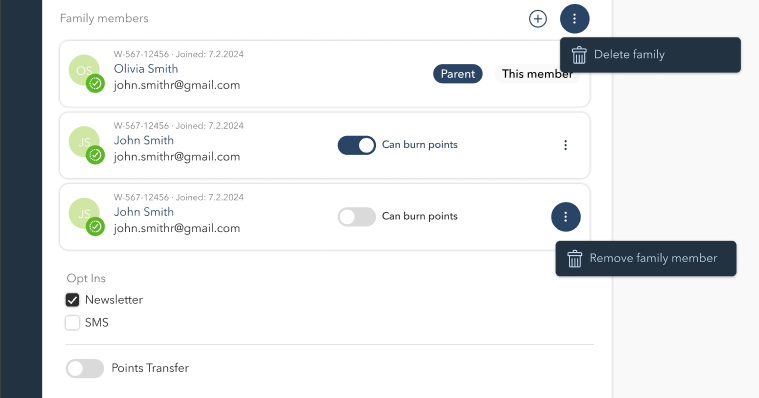
This section provides an overview of all members associated with the primary account and their permissions for using loyalty points. Each family group consists of:
Parent Member – The primary account holder, who has full control over the family account and point usage.
Linked Family Members – Additional members who can be granted permission to redeem points.
For each family member, the following details are displayed:
Member Name and Email – Identifies the user associated with the account.
Join Date – Indicates when the member was added to the family group.
Can Burn Points Toggle – Enables or disables the ability for the member to redeem points.
Family Account Actions
Add Family Member – Clicking the plus (+) icon allows you to add a new family member by entering their details and linking them to the account.
Remove Family Member – Clicking the three-dot menu next to a member allows you to remove them from the family group while keeping the rest intact.
Delete Family – Clicking the three-dot menu in the Family Members section allows you to delete the entire family group, including all linked accounts.
Opt-In Preferences
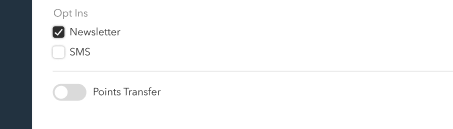
The Opt-In Preferences section allows you to manage communication settings for each member. These settings determine how members receive updates about their loyalty program.
Points Transfer
The Points Transfer setting controls whether a member is allowed to transfer loyalty points to another account. If enabled, the member can move points between accounts within the program.