
Notes
The Notes section under Member Details is designed primarily for support staff to document, track, and manage important information related to specific members. This section allows you to add, edit, and delete notes for internal use, helping streamline communication and ensure all relevant information is easily accessible.
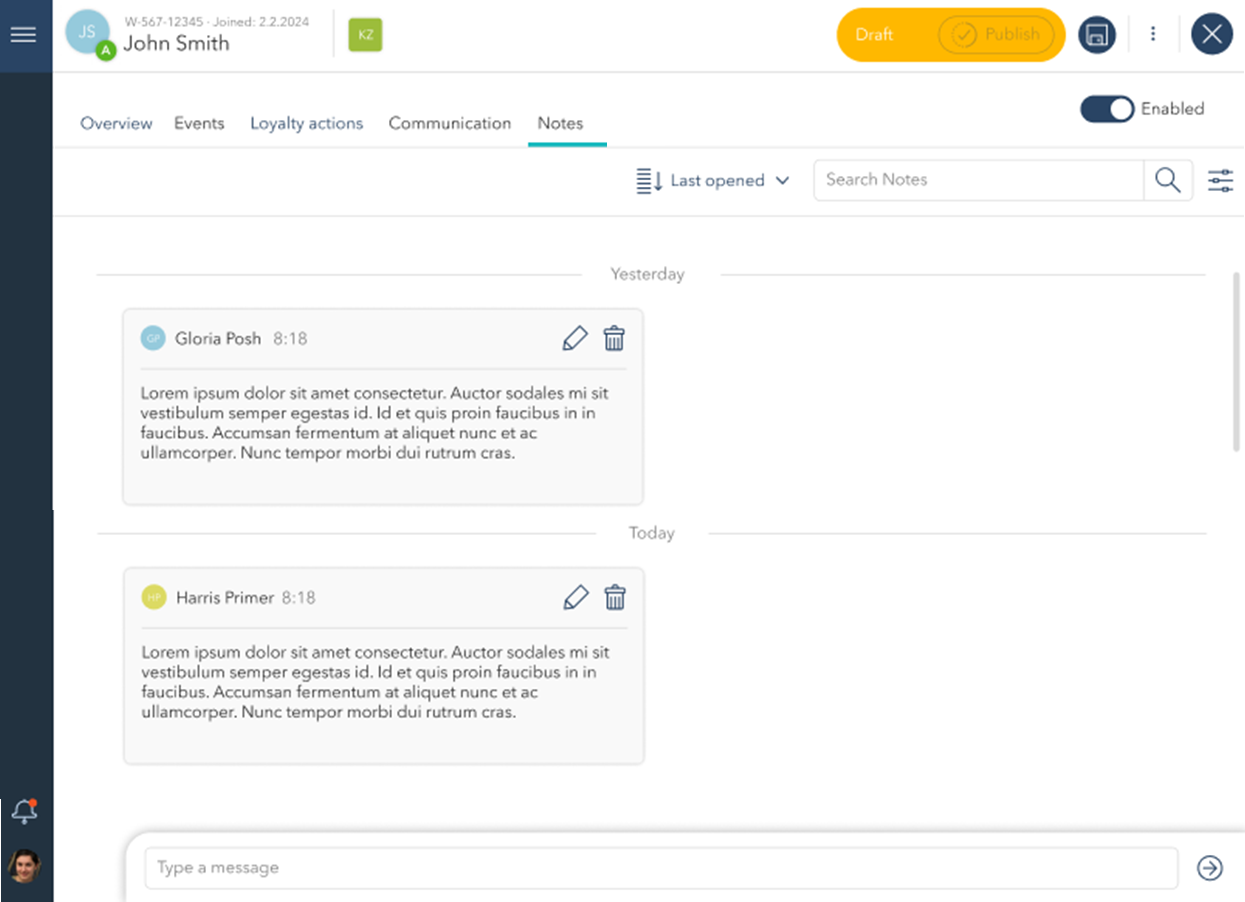
Managing Notes
You can create, edit, and organize notes related to a member's profile to ensure that all relevant information is easily accessible and up-to-date.
Create a New Note:
Use the text box at the bottom of the screen labeled "Type a message" to add new notes related to the member. After typing, click the Send icon to save the note.Edit Existing Notes:
Click the pencil icon on an existing note to edit the content. This allows you to update information without creating a new note.Delete Notes:
Click the trash bin icon to delete a note that is no longer relevant. Deleted notes are permanently removed and cannot be recovered.Timestamps:
Each note automatically records the date and time it was created, along with the name of the staff member who added it. This helps maintain an accurate record of interactions and updates.Sorting and Filtering:
You can sort notes by Last opened, Newest first, or other available criteria using the dropdown menu. To quickly locate specific notes, use the Search Notes bar by entering keywords or author names, and apply filters using the filter icon for more advanced search options.