
Create a New Property
This section outlines how to create and configure a new property within a propertyspace, covering essential settings such as property type, validation rules, activation options, and multi-language support.
To create a new property within any property space, follow these steps:
Select a Property Group
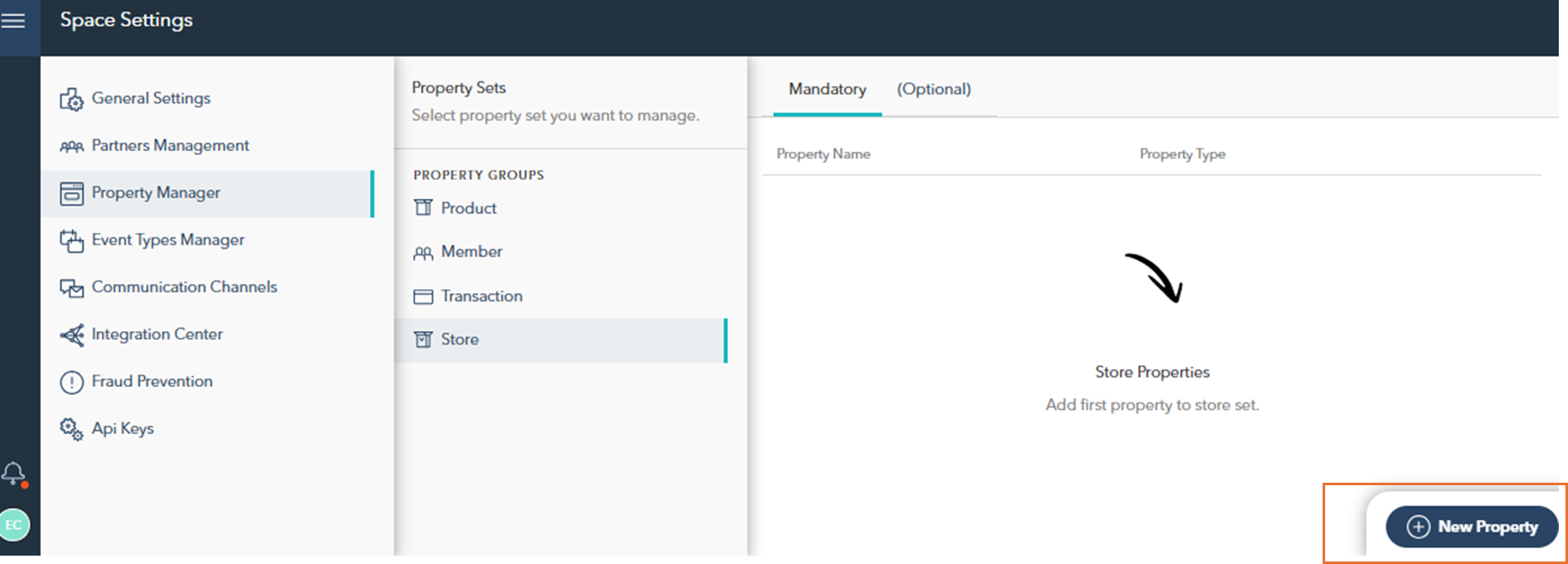
Begin by selecting the property group in which you want to add the new property from the left-hand side panel.

Before creating a new property, ensure you have selected the appropriate property group from the left-hand side panel. The new property will be added to the list of the currently selected group.
At the bottom-right corner of the screen, click the New Property button. This will open the property creation form.
Define Property Details
Enter a name for the property and provide a display name for the property.
Name: This is the internal identifier used by the system.
Display Name: This name will appear in the user interface.
Description (optional): Optionally, add a description to provide additional context or information about the property.
Choose the Property Type
Select the property type from the dropdown menu (e.g., Text, Decimal, Integer, Date, Boolean, DateTime). The property type determines the format of the data stored in this property.
Set Additional Options
Multiple: Enable this option if the property should accept multiple values.
Mandatory: By enabling this option the property will become mandatory property of all entities of the selected type (e.g., products, customers). For example, a property like 'Points price' for products is mandatory, as it applies to all products.

When adding new mandatory property, it won't be automaticaly added to all existing entities of the selected type (e.g., products, customers). Insted, once the user adds new entity or updates existing one, new property will be required. When adding new mandatory property, it is best practice to update all entities of the selected type with the value of new mandatory property.
For Text, Decimal, and Integer property types, additional input options are available:
Auto Complete: Enables automatic suggestions for input values.
Dropdown: Provides a dropdown list of predefined options.
Radio Button List: (Text only) Allows selection of one value from a list of radio buttons.
Input: Allows manual entry of data.
When Multiple is enabled for Text, Decimal, and Integer, additional input types include:
Auto Complete: Allows multiple inputs with automatic suggestions.
Dropdown: Allows multiple selections from a dropdown list.
Checkbox List: Enables the selection of multiple values via checkboxes.
In cases where Dropdown, Auto Complete, Radio Button List, or Checkbox List input types are selected, you will need to define the list of possible options under the Option List section. This field allows you to manually add each option that will appear in the list.
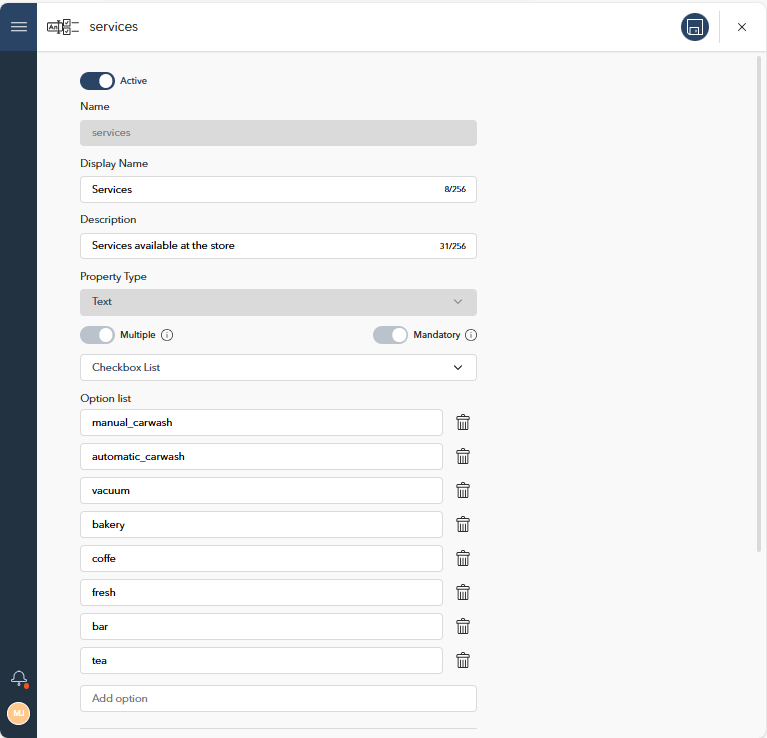

When entering options under the Option List, press "Enter" after typing each option. This will confirm the entry and open a new field for adding the next option.
Configure Validation Rules
To configure validation rules, the available options will change depending on the selected Property Type. Below are the possible validation options based on the property type:
Text: You can set validation rules like Minimum length, Maximum length, Exact length, or use a Regular expression.
Date and DateTime: Validation options include setting a Minimum date and Maximum date to limit the date range.
Boolean: The only validation option here is to determine whether the property is Required.
Decimal and Integer: You can apply numeric validation rules like Less than, Less than or equal, Greater than, or Greater than or equal. These rules allow you to define specific numerical conditions for the property.
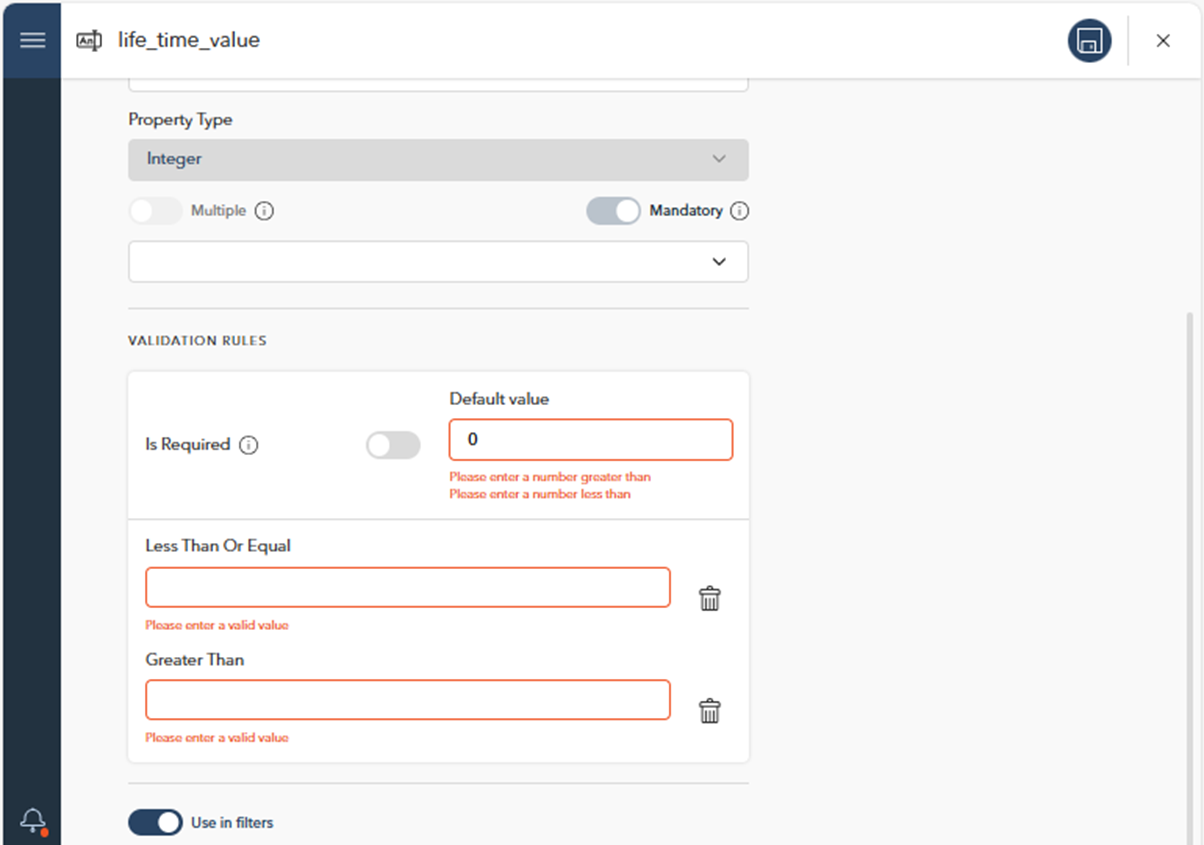
Each type allows you to set whether the field is Required and also define a Default value if needed.
Use in Filters: Enable this setting to make the property available in Filters.
Once a property is created, certain settings cannot be changed. These include: Name, Property Type, Multiple toggle, Mandatory toggle. If adjustments to these settings are needed, the only option is to delete the existing property and create a new one.