Loyalty Program Configuration
To manage your loyalty program’s core settings, start by navigating to the Loyalty Program Overview page. To access the configuration settings click the Edit button on the Loyalty Program Overview page.
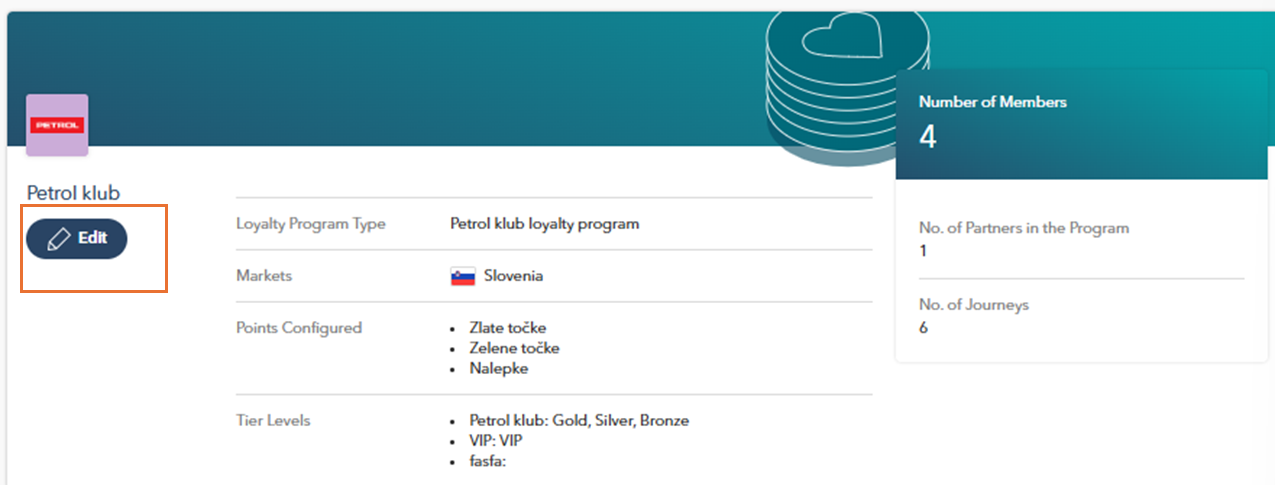
You will be redirected to the Loyalty Program Configuration page, where you can define or modify essential program settings and manage the core aspects of your loyalty program. From defining the program's start and end dates to setting up point systems, tiers, and rules for earning and redeeming points, this page provides a comprehensive set of tools to customize the program according to your needs.
The page is organized into several tabs, each focusing on different aspects of the loyalty program:
In the following subsections, we will explore each tab in detail to understand how to set up and manage the specific settings of your loyalty program.

Whether you are configuring the program for the first time or making changes, remember to save your settings using the save icon located in the top-right corner of the page. The save button applies to the entire Loyalty Program configuration, not just the individual tabs (such as Points, Tiers, etc.).
General Settings
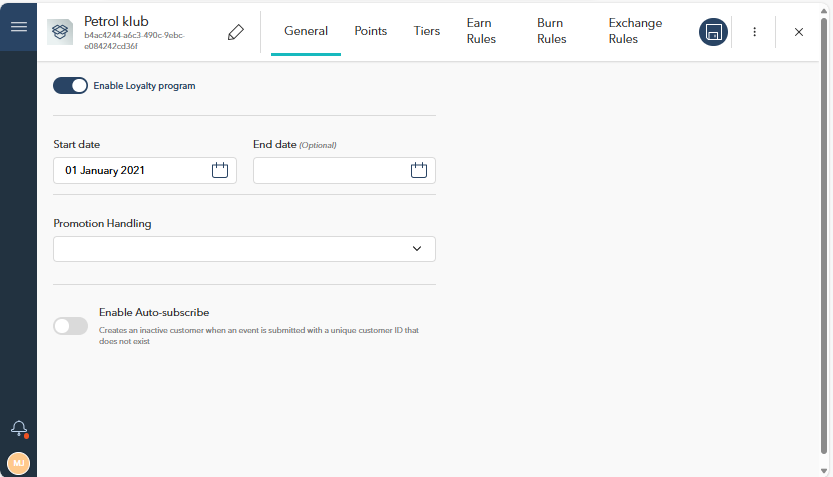
The General tab contains the basic settings for your loyalty program. These options allow you to configure the core aspects of how the program operates and interacts with members. The following settings are available:
Enable Loyalty Program: Toggle to activate or deactivate the program.
Start Date & End Date: Set the start date (mandatory) and optional end date for the program's duration.
Promotion Handling: Choose how promotions are applied:
Maximize by Promotion: Prioritizes the most valuable promotion.
Maximize by Point Type: Prioritizes the most valuable point type.
All Promotions Apply: Applies all available promotions.
Enable Auto-subscribe: Automatically creates inactive customer profiles when a unique customer ID is submitted for the first time.
Points Configuration
The Points tab allows you to manage and configure the behavior of different point types in your loyalty program. This includes defining activation delays, transfer settings, and expiration rules for points.
Point Types
You can create new point types (e.g., "Gold Points" or "Stickers") or edit existing ones by selecting them from the list. Use the Add Point Type button to create a new type.
Name & Display Name
Name: Internal system name for the point type.
Display Name: The name that will be visible to members.
Activation Delay: Specify a delay (in minutes, hours, or days) before earned points become active and available for use.
Points Transfer: Enable or disable the ability to transfer points between members.
Points Expiration
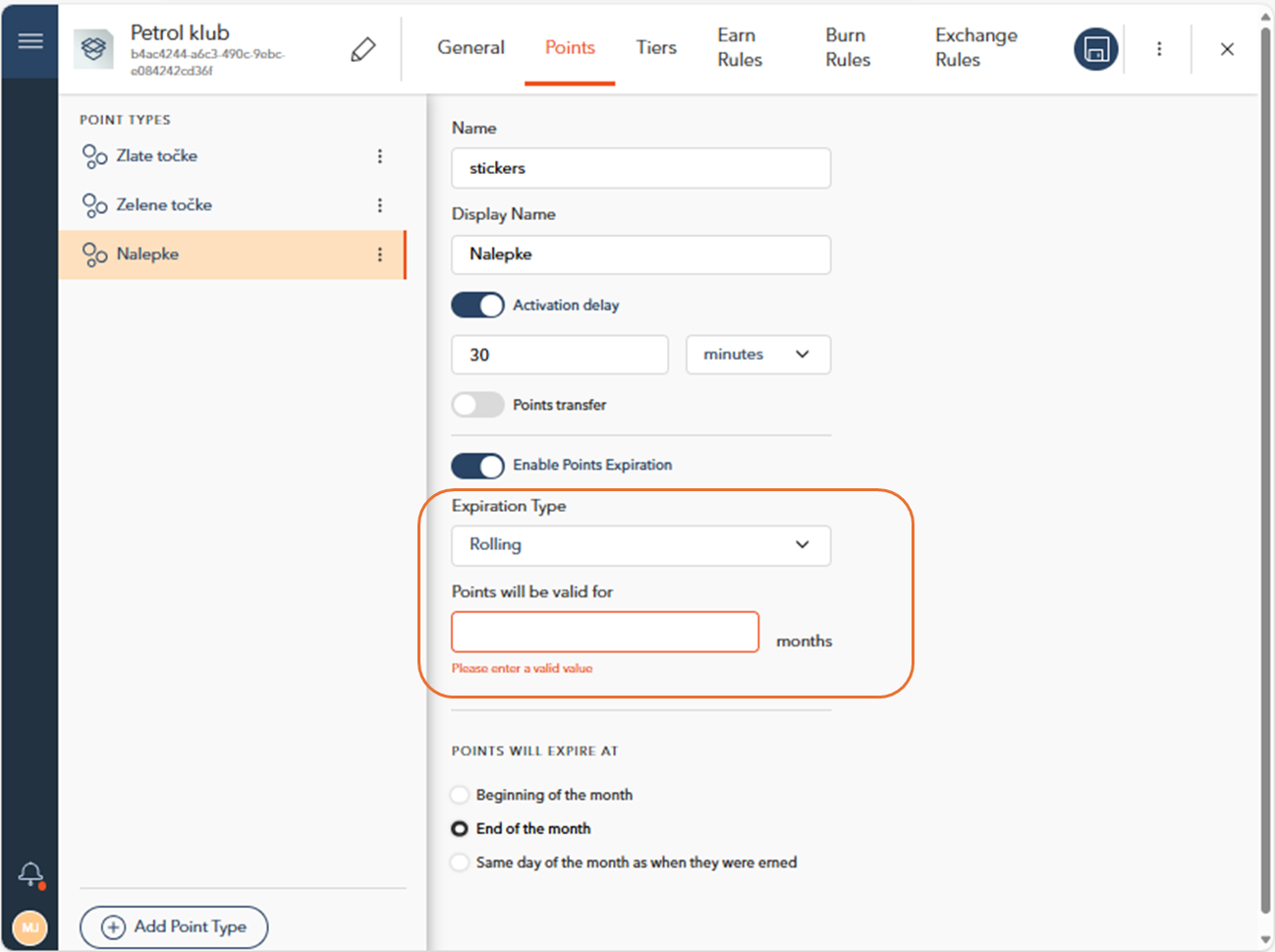
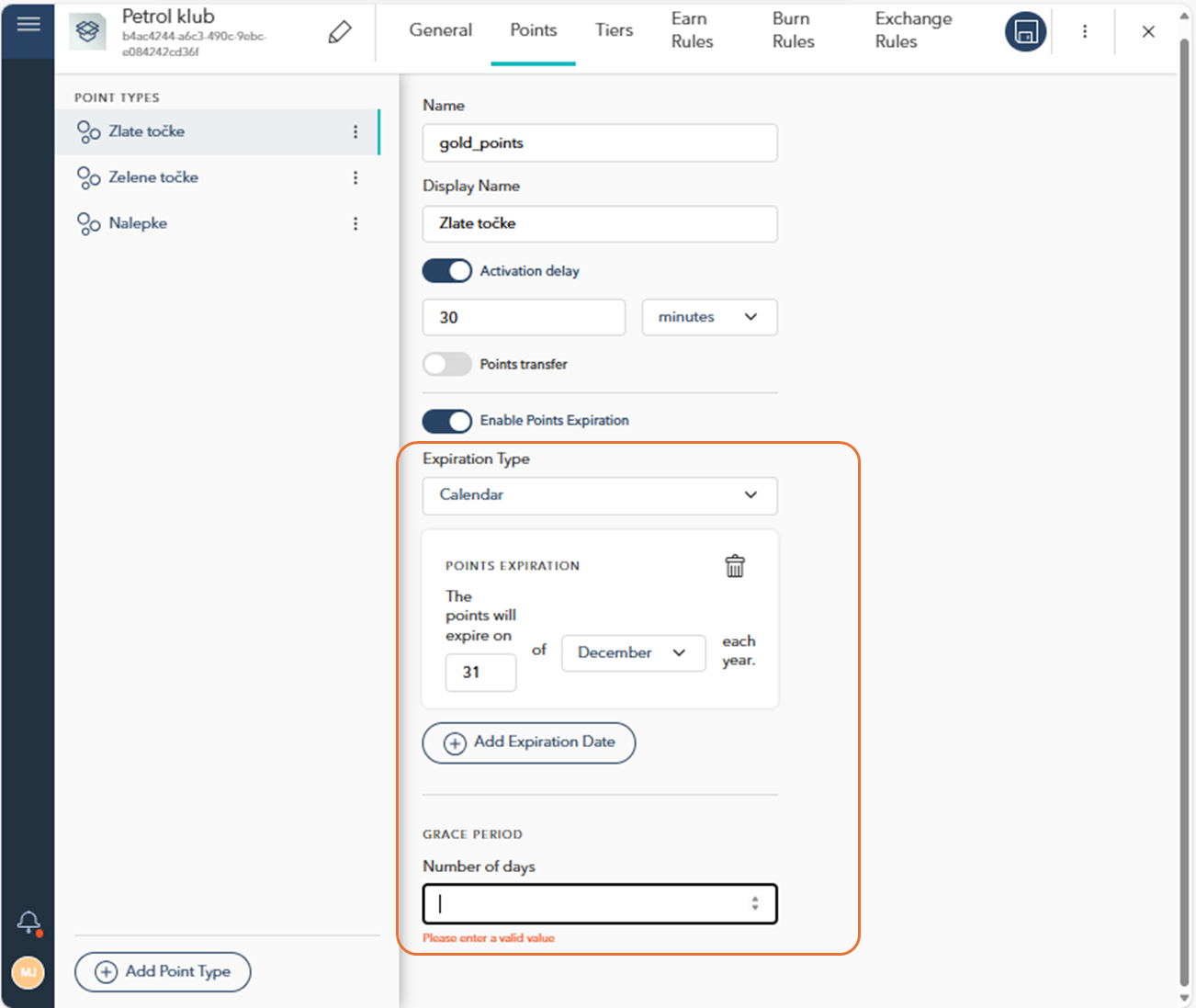
Enable Points Expiration: Toggle this option to activate the expiration settings for points, allowing you to set when points will expire after being earned.
Expiration Type: You can choose between two types of expiration: Rolling Expiration or Calendar Expiration.
Rolling Expiration: Points expire after a set period from the date they are earned. You can specify when in the month the points will expire, such as the beginning or end of the month, or on the same day they were earned. This option provides flexibility in controlling how long members can hold onto their points before they expire.
Calendar Expiration: Points expire on a specific date each year, which you can configure based on your program's needs. Additionally, the Add Expiration Date option allows you to add multiple expiration dates if needed. The Grace Period setting provides extra days after the expiration date during which members can still redeem their points, giving them a buffer period.
Deleting Point Types
To delete an existing point type, click the three dots next to the point type in the list, and select Delete from the dropdown menu. This will remove the point type from the system.
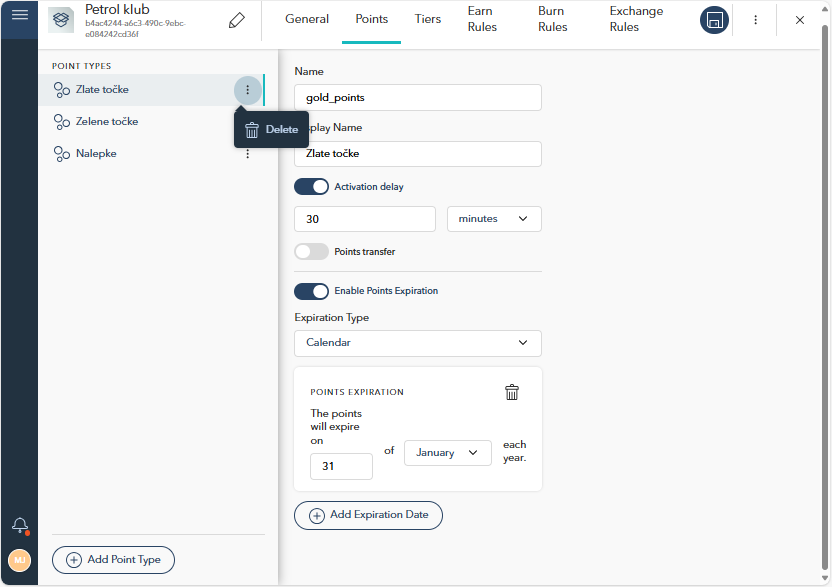
Be cautious when deleting a point type, as this action cannot be undone and will permanently remove all associated data.
Tiers Management
The Tiers section allows you to manage and configure the behavior of different membership levels within your loyalty program, grouped under Tier Stacks. A Tier Stack contains multiple membership Tiers (e.g., "Gold", "Silver", "Bronze") that can be customized and managed. You can create new Tier Stacks or add/delete individual Tiers within them.
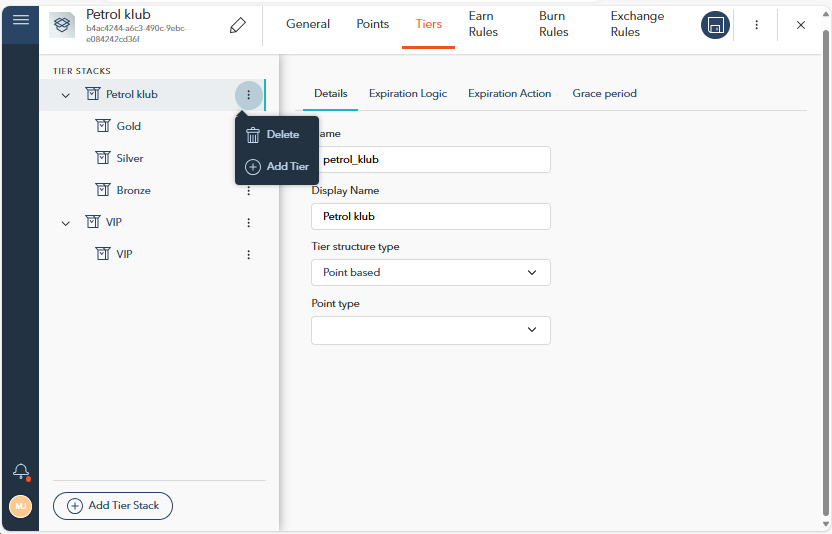
Each Tier Stack is customized with specific settings, including expiration logic, expiration actions, and grace periods for all the tiers within the stack. Additionally, each individual Tier within a Tier Stack has its own settings, such as the number of points required for entry.
Tier Stack Settings
In the Tier Stack Settings, you manage the settings that apply to all tiers within a specific stack. To configure the stack settings, navigate through the tabs, which include:
Details
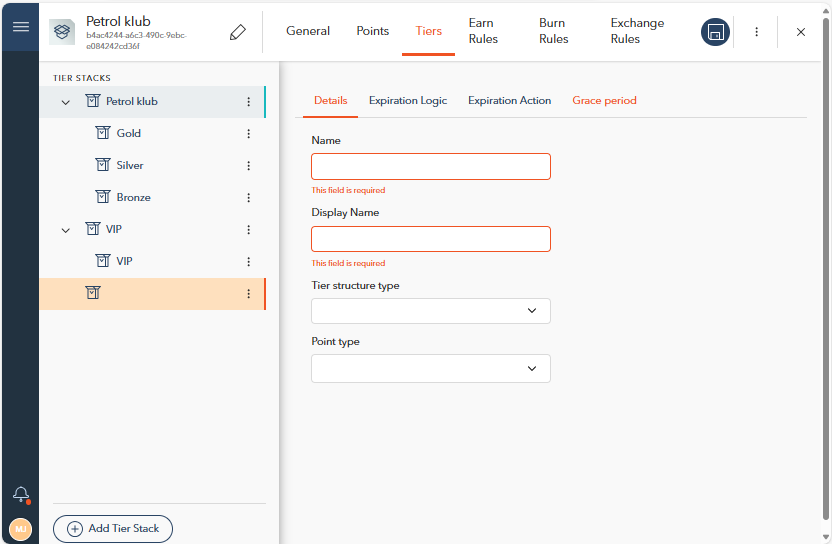
This tab allows you to manage the core details of the entire Tier Stack, including:
Name: The internal system name for the tier stack.
Display Name: The name that will be visible to members.
Tier Structure Type: Select how the tier structure is organized (Options include: Point based, Spend based, Invitation only).
Point Type: Use the dropdown menu to select one or more point types used to track progress in the tier stack. The available options are based on the point types defined in the Points tab.
Expiration Logic
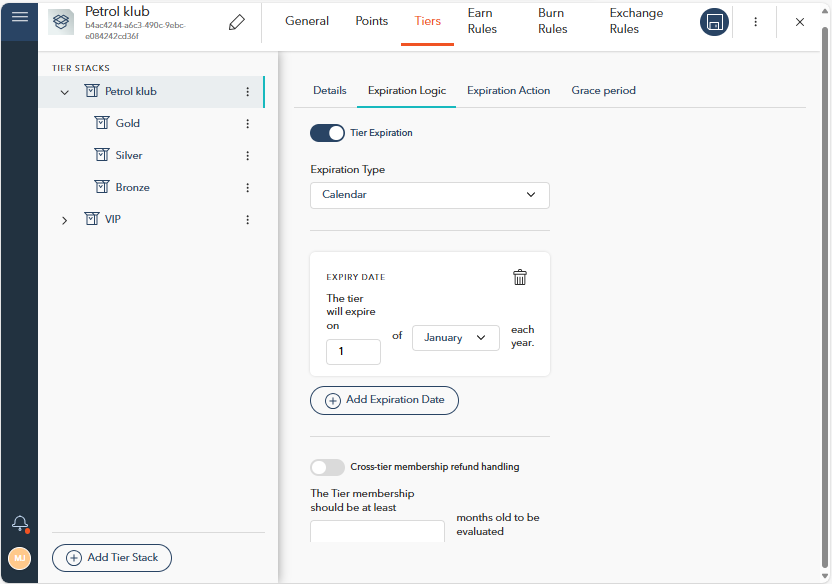
The tab defines how and when tiers within the stack will expire. Options include:
Tier Expiration: Toggle this option to enable expiration for the tier stack.
Expiration Type: Choose between:
Rolling: Tiers expire after a specific period from the date they were earned. You can define the expiration period in days, months, or years.
Calendar: Tiers expire on a specific date each year. You can configure the exact date, and additional dates can be added using the "Add Expiration Date" button.
For Calendar expiration, the following additional settings are available:
Cross-tier membership refund handling: Enable this option to handle refunds if applicable.
The Tier membership should be at least [X] months old to be evaluated: Set the minimum number of months a member must stay in the tier before it is evaluated.
Expiration Action
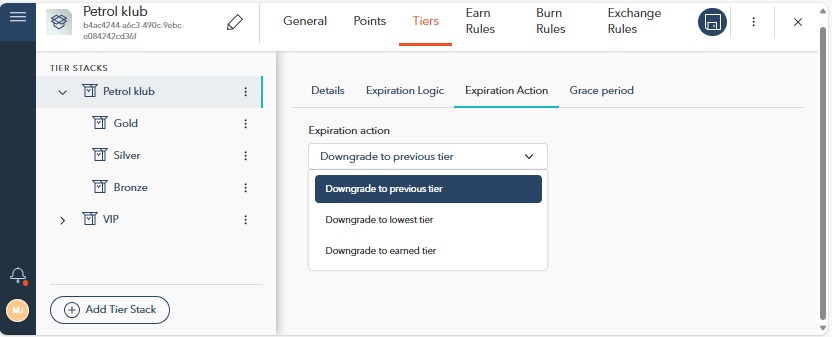
In the Expiration Action tab, you define what happens when a tier expires within the stack. You can choose from the following actions:
Downgrade to Previous Tier: Members are moved down to the tier they previously held.
Downgrade to Lowest Tier: Members are moved to the lowest tier within the stack.
Downgrade to Earned Tier: Members are moved to the last earned tier based on their points or activity.
Grace Period
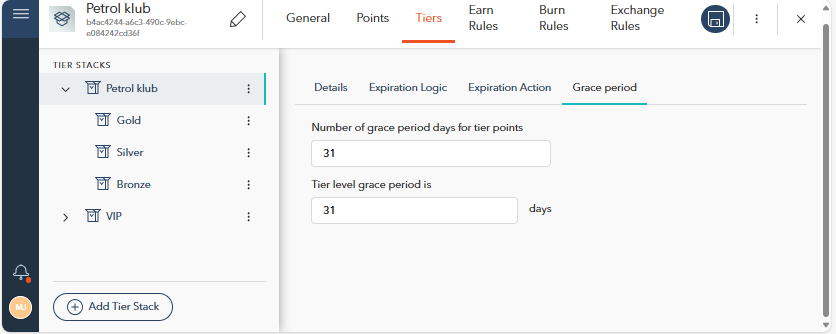
The Grace Period tab allows you to specify a grace period after a tier has expired, giving members additional time before the downgrade action is applied. You can set the following:
Number of Grace Period Days for Tier Points: The number of days the member will retain their points in the current tier before they expire.
Tier Level Grace Period: Define how many extra days the member will remain in the current tier before being downgraded.
Defining Tiers and Points for Entry
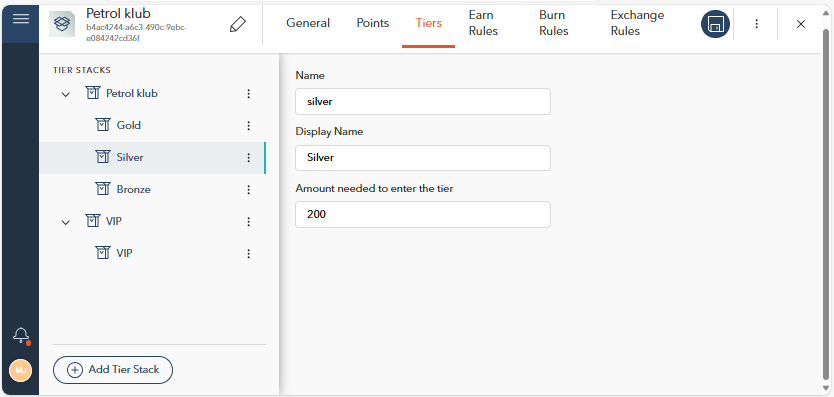
When configuring a new Tier within a Tier Stack, you can define key details for each membership level. This allows you to set specific requirements for how members progress through different tiers in your loyalty program. The main fields to configure for each Tier include:
Name: The internal system name for the tier, used for organizational purposes.
Display Name: The name visible to members when they interact with the loyalty program.
Amount Needed to Enter the Tier: Specify the number of points a member must accumulate to qualify for this specific tier. This threshold determines when a member can move up to the selected Tier.
Earn Rules
The Earn Rules tab allows you to define how members accumulate points in your loyalty program. You can set up standard earning rules, as well as special rules for specific segments or tiers. The settings provide flexibility to tailor point-earning opportunities based on various conditions, ensuring that your loyalty program is both rewarding and strategic.
Standard Earn Rules
You can define the basic earning rules within the Earn Rules tab. Click the New Earn Rules button to open the form where you can configure basic rules for how members accumulate points.
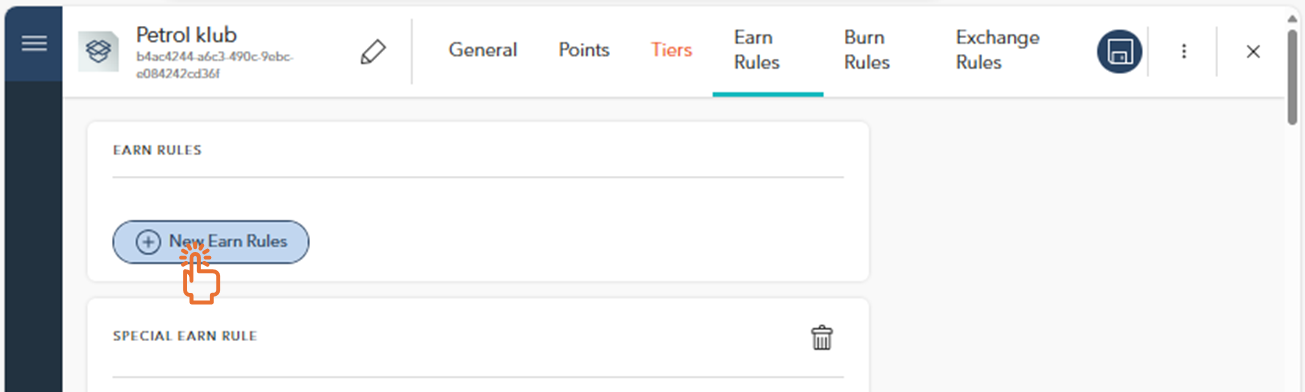
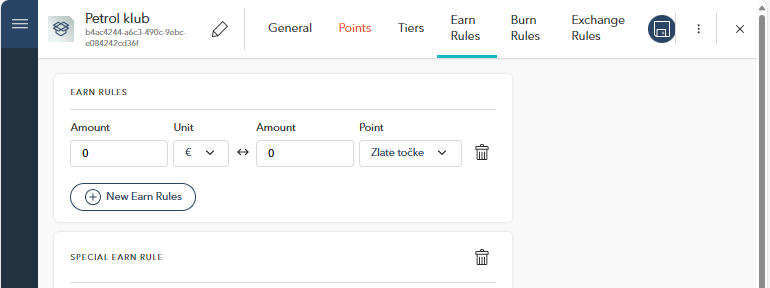
In this section, you can define the basic earning rules for your program:
Amount: Specify the number of units (e.g., currency, volume) required for members to earn points.
Unit: Define the unit of measurement for the amount (e.g., euros, liter).
Point: Choose the point type members will earn (e.g., "Gold Points," "Stickers"). This is selected from the previously defined point types in the Points tab.
Use the New Earn Rules button to create additional rules.
Special Earn Rule
This section allows you to set up special earning rules that apply to specific segments or tiers:
Segment: Select a segment to which you want to apply the special earn rule. At least one segment must be defined.
Tiers: Select the tiers to which the special earn rule will apply. At least one tier must be selected.
Include/Exclude: Specify which products or services should be included or excluded from the special earn rule (e.g., specific product groups).
Priority: Set the priority of the special earn rule. If there are overlapping segments or tiers, the rule with the higher priority will apply (the lower the number, the higher the priority).
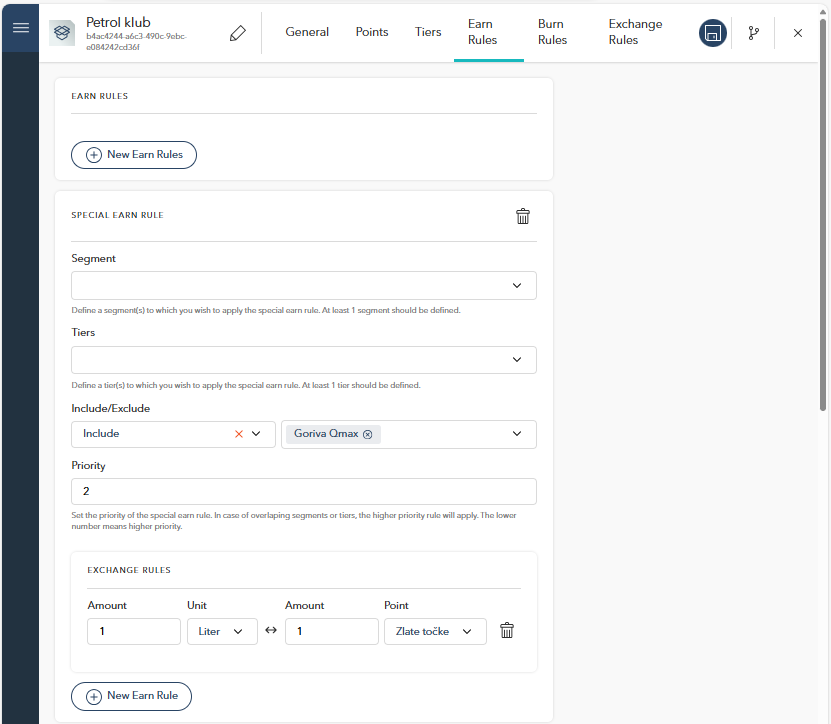
In addition to the special earn rules, you can define Exchange Rules that allow members to convert units into points. This feature is useful for specific cases where members can exchange purchases or other actions into loyalty points.
Amount: The number of units that can be exchanged (e.g., 1 liter of fuel).
Unit: The unit of the exchangeable amount (e.g., liters, currency).
Point: The point type that will be given in exchange for the specified unit.
Use the New Earn Rules button to add more exchange rules.
You can add multiple Special Earn Rules by clicking the New Special Earn Rule button, located at the bottom of the page.
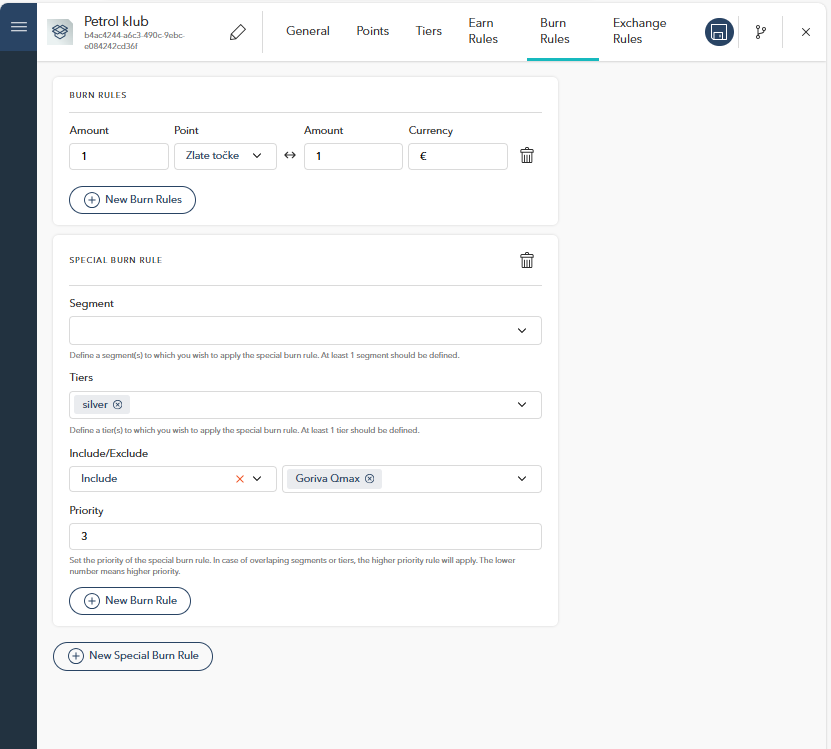
Burn Rules
The Burn Rules tab allows you to configure how members can redeem or "burn" their accumulated points in exchange for rewards, discounts, or other benefits. Similar to the earn rules, you can set up both standard burn rules and special burn rules to apply to specific segments or tiers within your loyalty program.
Standard Burn Rules
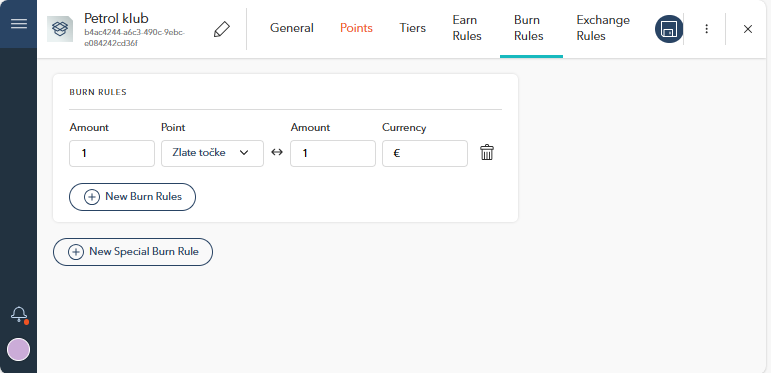
In this section, you can define the basic burn rules for your program, specifying how members can exchange points for rewards:
Amount (Points): Define the number of points required to redeem a specific reward.
Amount (Currency): Define the monetary equivalent for the points (e.g., 1 point = 1€).
Point Type: Choose the point type (e.g., "Gold Points," "Stickers") members will redeem. This is selected from the previously defined point types in the Points tab.
Use the New Burn Rules button to create additional burn rules.
Special Burn Rule
This section allows you to set up special burn rules that apply to specific segments or tiers:
Segment: Select a segment to which the special burn rule will apply. At least one segment should be defined.
Tiers: Select the tiers to which the special burn rule will apply. At least one tier must be selected.
Include/Exclude: Specify which products or services should be included or excluded from the special burn rule.
Priority: Set the priority of the special burn rule. In the case of overlapping segments or tiers, the rule with the higher priority will apply. The lower the number, the higher the priority.
In addition to the special burn rules, you can define Excahnge Rules that allow members to convert units into points. This feature is useful for specific cases where members can exchange purchases or other actions into loyalty points.
Amount: The number of units that can be exchanged (e.g., 1 liter of fuel).
Unit: The unit of the exchangeable amount (e.g., liters, currency).
Point: The point type that will be given in exchange for the specified unit.
Use the New Burn Rules button to add more exchange rules.
You can add multiple Special Burn Rules by clicking the New Special Burn Rule button, located at the bottom of the page.
Exchange Points Rules
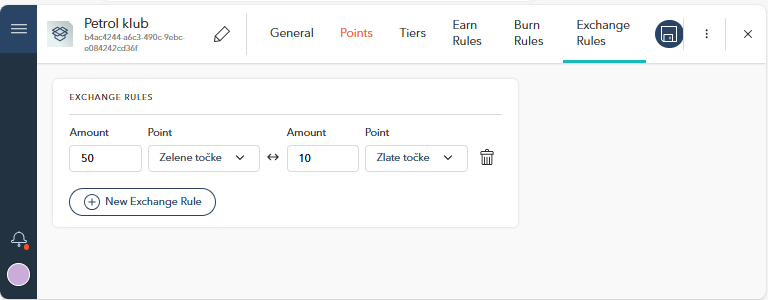
The Exchange Rules tab allows you to define how different types of points can be exchanged within your loyalty program. This is useful when members can convert one type of point into another based on predefined exchange rates.
Exchange Rules Setup:
Amount: The number of points of the first type that will be exchanged.
Point (From): The point type that will be deducted from the member’s balance during the exchange.
Amount (To): The number of points of the second type that will be credited to the member’s balance.
Point (To): The point type that will be added to the member’s balance after the exchange.
You can add multiple exchange rules by using the New Exchange Rule button.
This flexible structure allows for the seamless conversion of various units or points, ensuring that members have diverse ways of interacting with your loyalty program based on their needs and preferences.