
Event Types Manager
The Event Types Manager section enables you to organize, create, and manage event types within the platform. Events are grouped into categories, making it easier to track and structure various activities across the system.
Event Types Overview
Each event contains key information displayed in the list:
ID, Name, and Description: Unique identifiers and a short description of the event.
Description Date: The date when the event was created or last modified.
Type: Indicates the classification of the event. Events can be categorized as:
Internal: Events generated automatically by the system, such as Points awarded or Tier upgraded.
External: Events triggered by external systems, divided into:
Built-in: Predefined events that are integrated into the platform by default.
Custom: Events created by clients to connect external applications with EXP, allowing for flexible integrations.

Built-in events are essential for core system functionality and cannot be deleted or extended with additional custom properties.
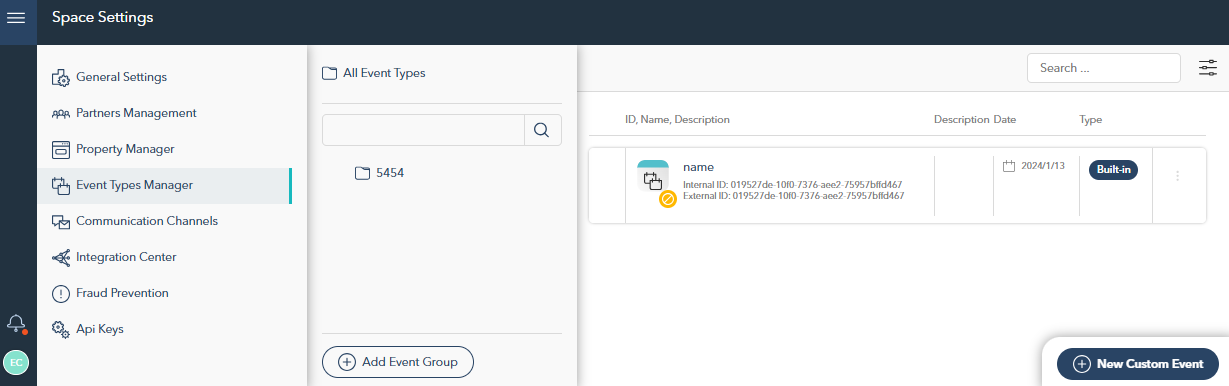
Use the search bar at the top of the event groups list to find specific events by their name, ID, or description. This functionality makes it easy to quickly navigate through large numbers of events.
Managing Event Groups
Within the Event Types Manager, you can create, edit, and delete event groups as well as manage custom events within those groups.
Editing or Deleting Event Groups
To modify or remove an existing event group:
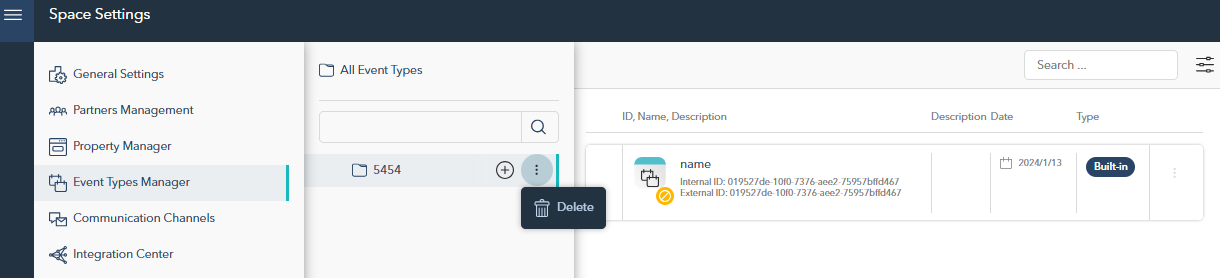
Hover over the name of the group in the list.
Click the three-dot menu next to the group name.
Select Delete to permanently remove the group and all associated events.
Creating a New Event Group
To create a new event group:
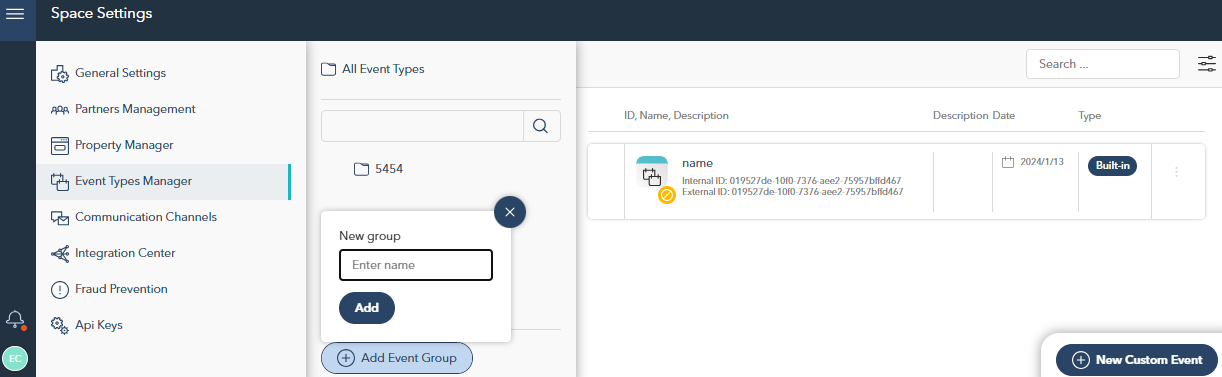
Click the Add Event Group button at the bottom of the event group list.
Enter the name of the new group in the pop-up window.
Click Add to save the group.
Adding a New Custom Event
Once an event group is created, you can add a custom event to it by following these steps:
Select the desired group from the event group list.
Click the New Custom Event button located in the bottom right corner.
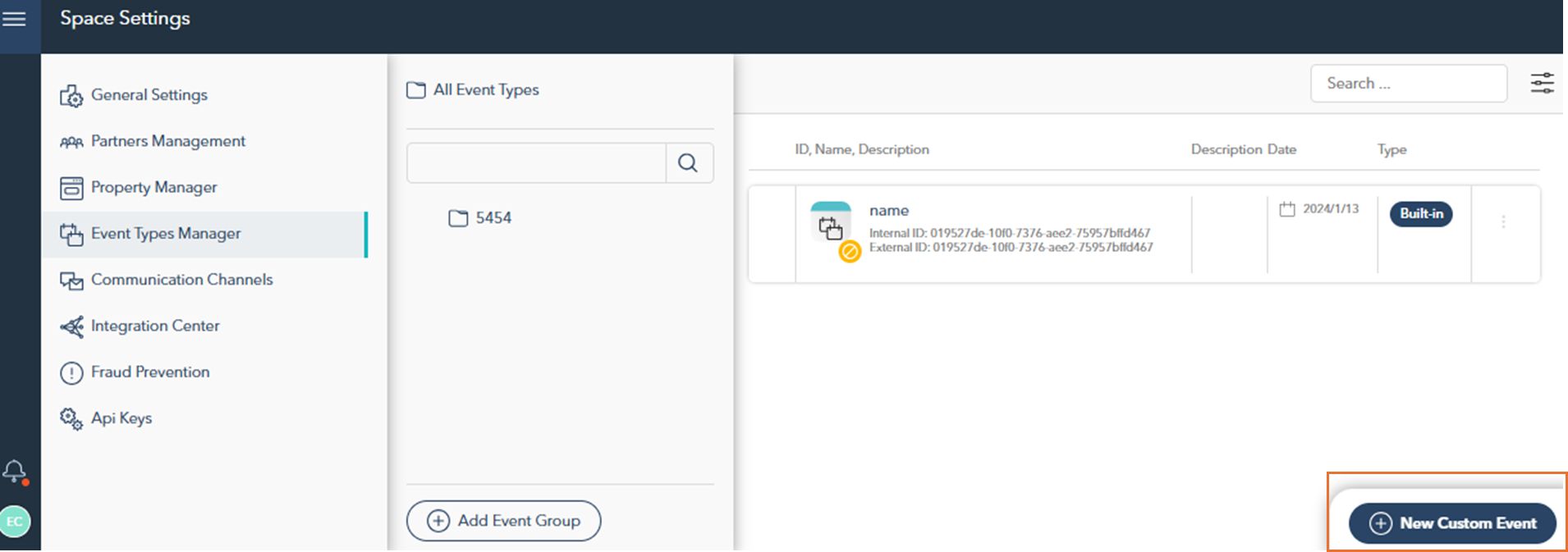
A window will open where you can enter the required event details.
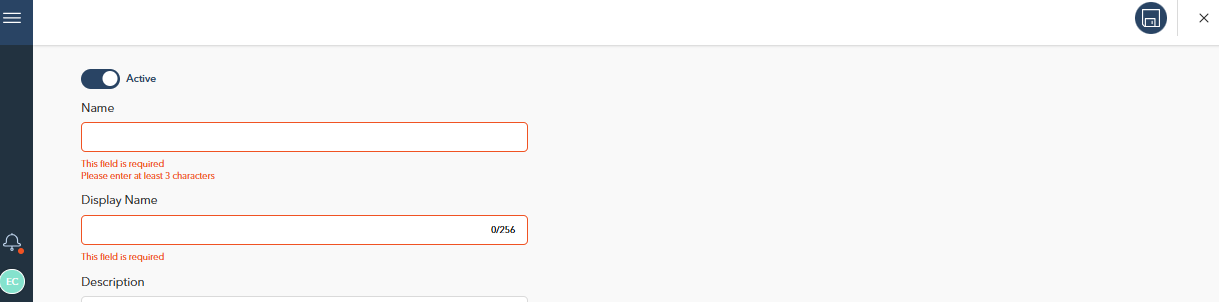
Click Save icon to finalize and create the new event.
The newly created custom event will appear under the selected event group.