
Space Management
The Space Management section allows you to view, create, and manage all loyalty spaces within your tenant. Each space represents a specific loyalty program with unique configurations such as point types, tier structures, loyalty rules and so on.
Overview of Spaces
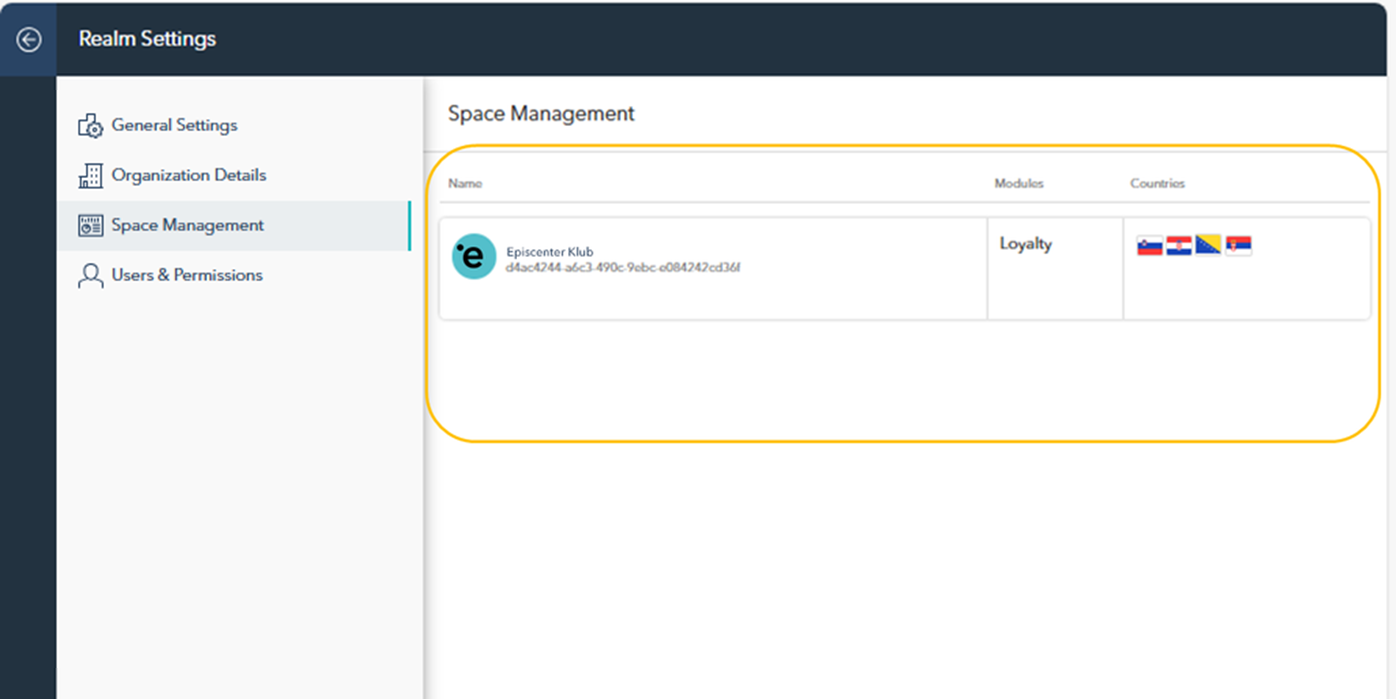
On the main page of the Space Management section (as shown in the screenshot below), you'll find an overview of all the existing spaces within your tenant. Each entry displays the space's name, the related loyalty modules, and the countries where the space is active, represented by country flags.
Creating a New Space
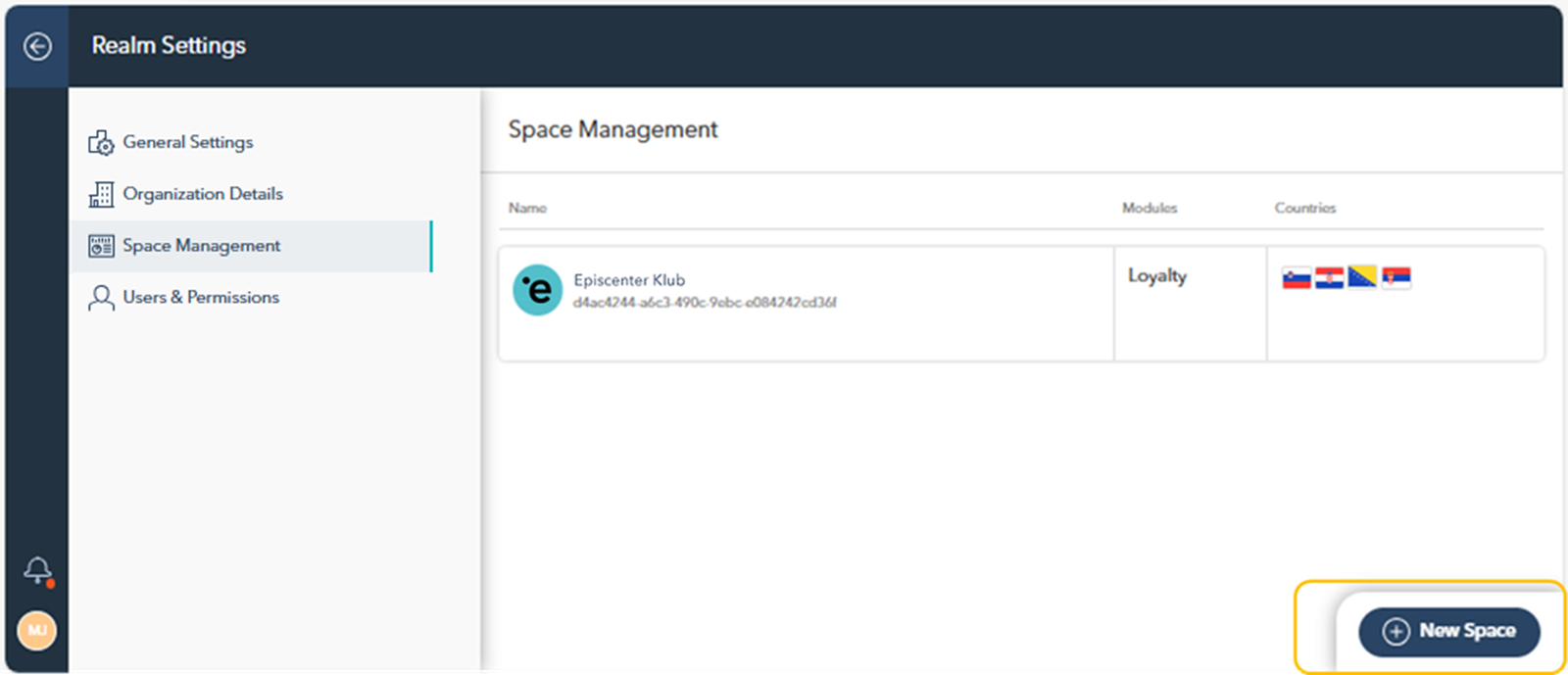
To create a new space, click on the New Space button located at the bottom right of the screen. This will open the Space Wizard, where you will be guided through the process of configuring the space.
Space Wizzard
Step 1: Space Details
Here, you'll provide essential information for the new loyalty space.
Name: Specify the name of the loyalty space.
Logo/Image: Upload an image to represent this loyalty space (e.g., a logo or other relevant visual).
Timezone: Choose the relevant timezone for the program.
Currency and Currency Symbol: Define the currency and its symbol used in the space.
Countries: Select the countries where this loyalty space will be active.
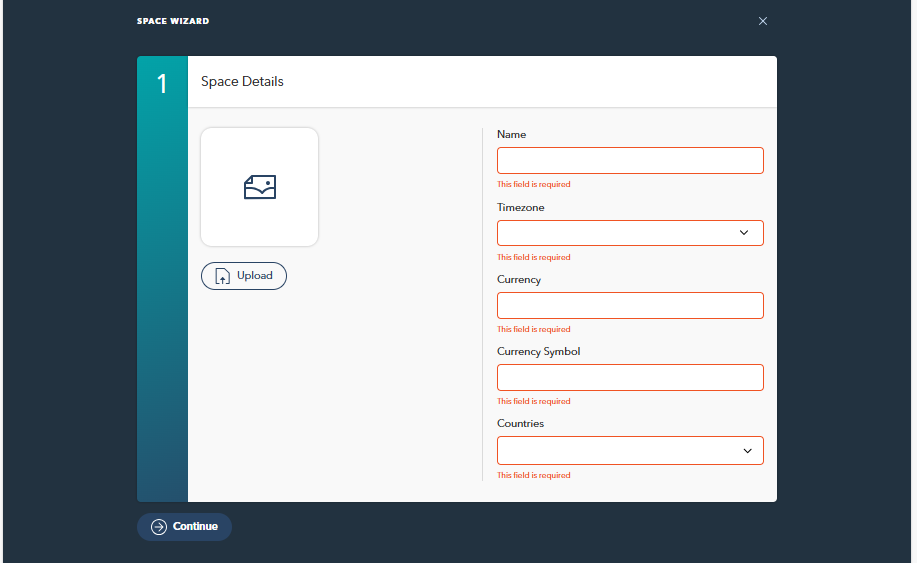

All fields must be filled out to ensure the space is properly configured for its intended region and operations.
Once completed, click the Continue button to proceed to the next step.
Step 2: Select Suites
Choose the suite(s) to be associated with the space, such as Loyalty, Campaign, or Survey. This allows you to specify which functionalities are enabled for the space.
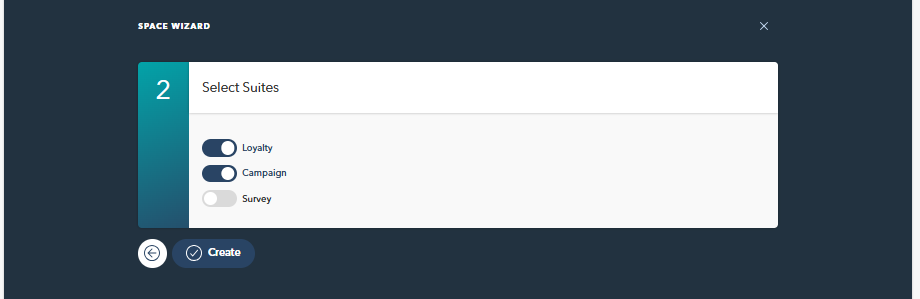
Once all the information has been entered, click Create to finalize the space setup.
Editing an Existing Space
To edit an existing space, select the space from the list by clicking on it.
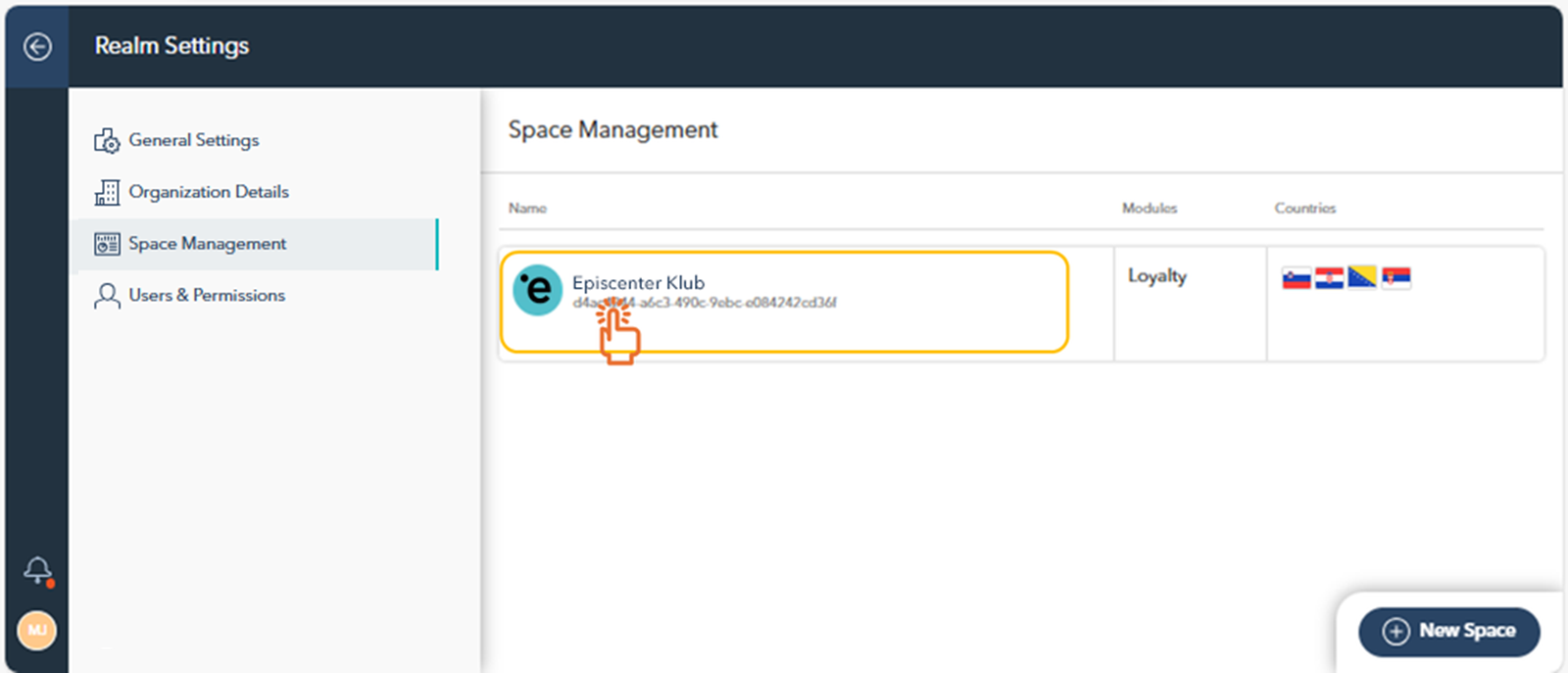
Clicking on the space will open the space details page, where you can modify the following settings:
Description: Update the description of the space.
Timezone: Adjust the timezone settings for the space.
Currency and Currency Symbol: Update the default currency and its symbol used in this space.
Countries: Add or remove countries where the loyalty space operates.
Suites: Enable or disable suites such as Loyalty, Campaign, or Survey depending on the functionalities you need.
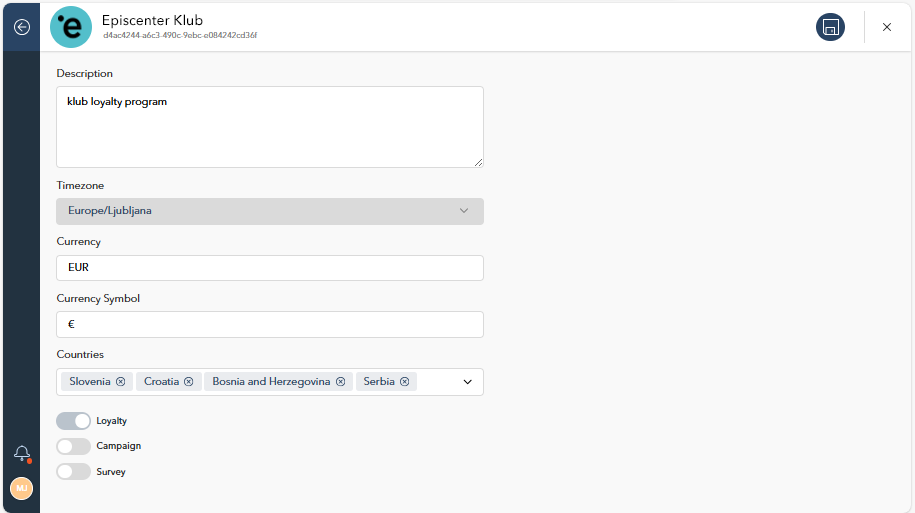

Ensure that all changes are saved by clicking the save icon in the top-right corner.