
Product Groups and Products Overview
The Product Catalogue section provides a comprehensive interface for managing and organizing all products. Products are categorized into Main Groups and Custom Groups, allowing for flexible organization and easy navigation.
Glossary
Product | A product groups one or more product variants. At least one variant is required. Loyalty actions and other operations can only be performed on variants, not directly on the product. |
|---|---|
Product Variant | Every product must have at least one variant. Variants inherit the product’s properties but can also have unique properties. |
Main Groups | Main product groups organize products in a tree structure. They may contain products but not individual variants, and often mirror groups from eCommerce or ERP systems. |
Custom Groups | Custom groups are created for specific purposes, such as organizing products for a promotion. They are flexible and allow grouping products that share a specific purpose. |
Product Groups
Main Product Groups
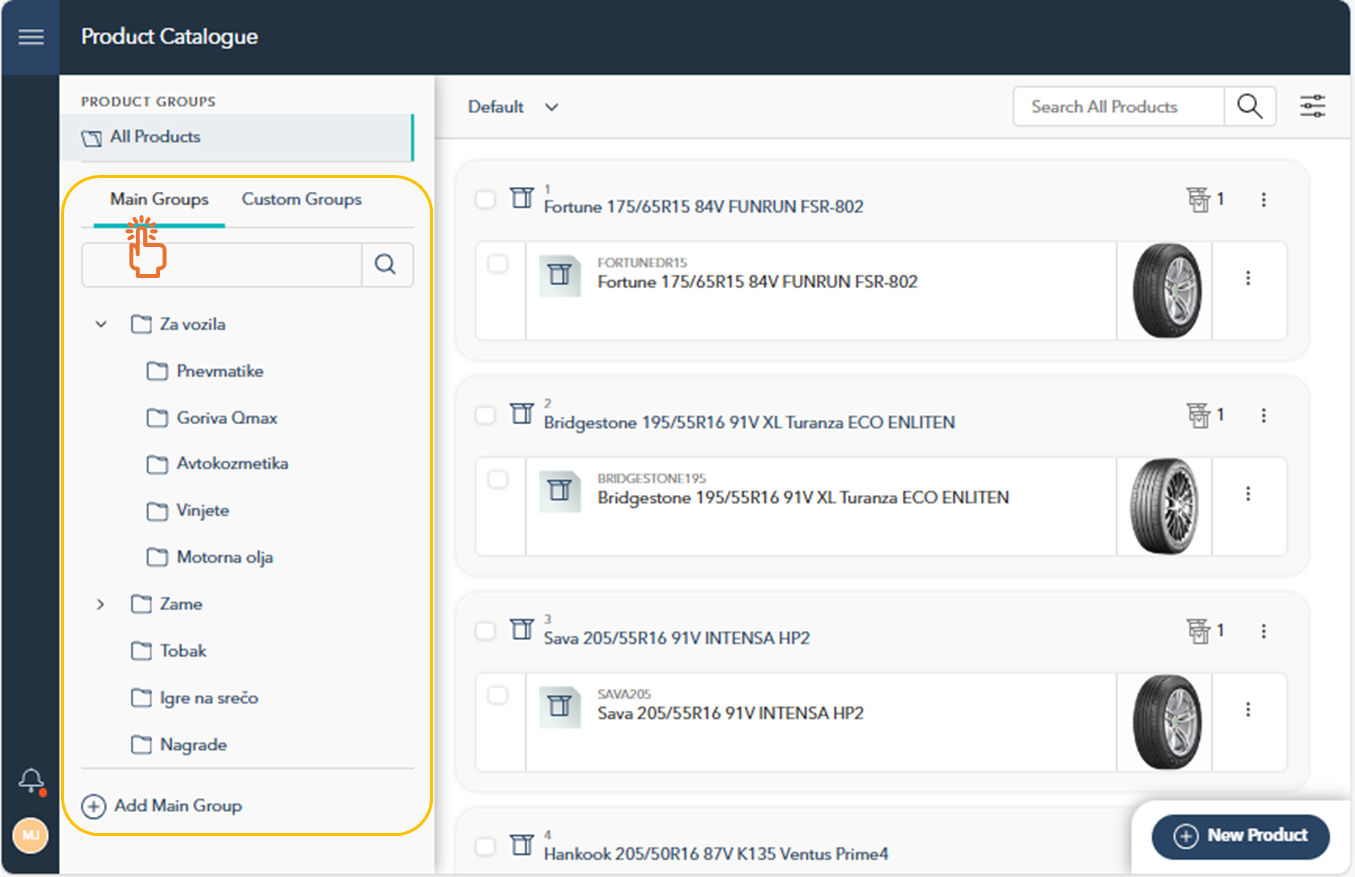
On the left-hand side of the screen, the Main Groups section displays all product categories. These groups allow you to categorize products into relevant categories. Each group can contain multiple products that share similar characteristics.
Creating a New Group: To add a new group, click on the Add Main Group button. A field will appear, allowing you to enter the name of the new group. Once added, the group will appear in the list of Main Groups.
Adding Subgroups: To create a subgroup within an existing group, click on the Plus (+) icon next to the group name. A field will appear where you can enter the name of the new subgroup. After saving, the subgroup will be nested under the selected group.
Organizing Groups into Folders: Groups can be organized into folders to maintain a structured and clear product catalogue. Use the arrows next to each folder to expand or collapse the list of subgroups.
Custom Groups
In addition to Main Groups, the Product Catalogue allows you to create Custom Groups. These groups offer more flexibility by enabling you to group products based on specific conditions or criteria.
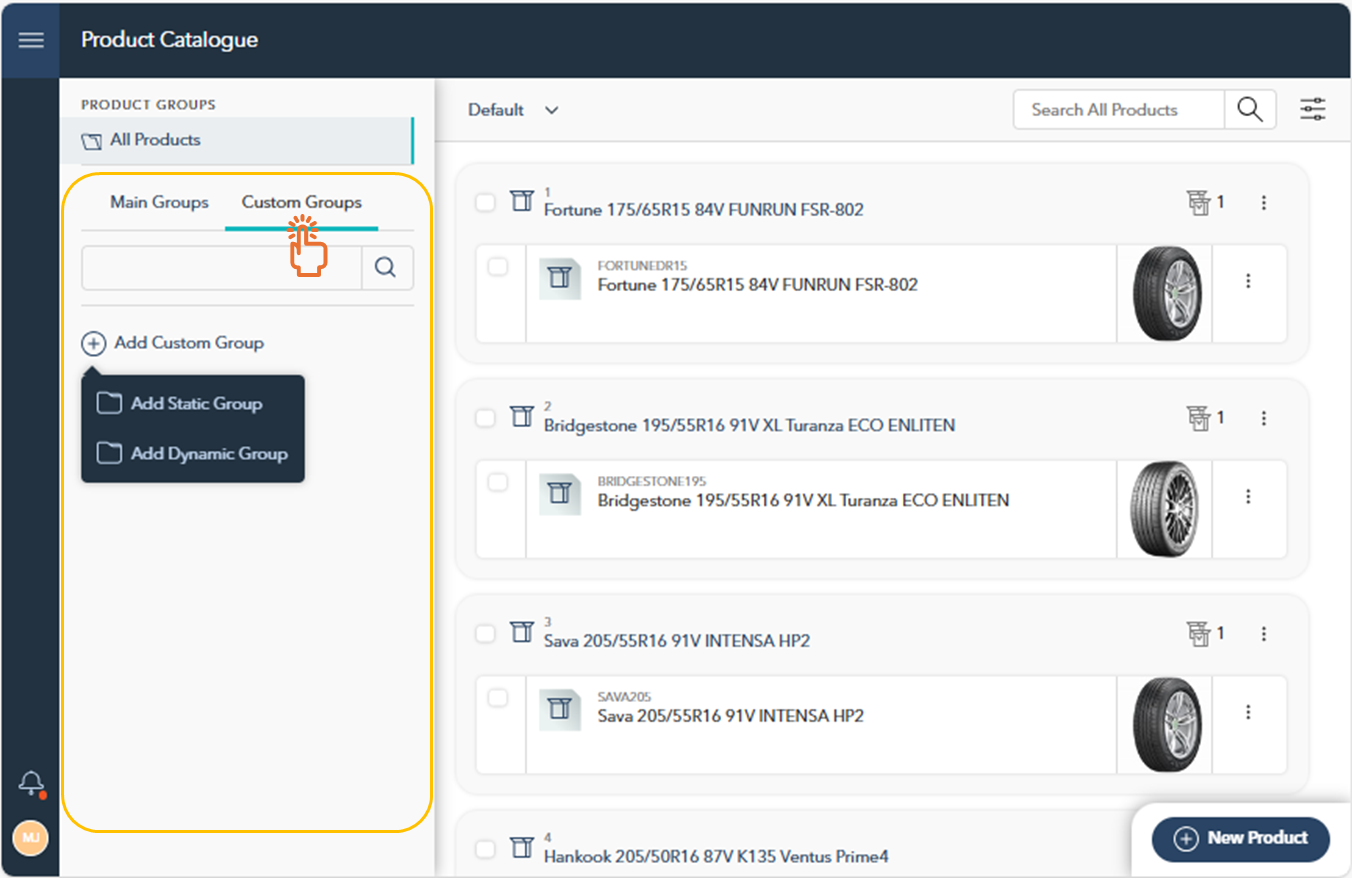
Static Groups: These are groups where products are manually added and remain in the group unless removed.
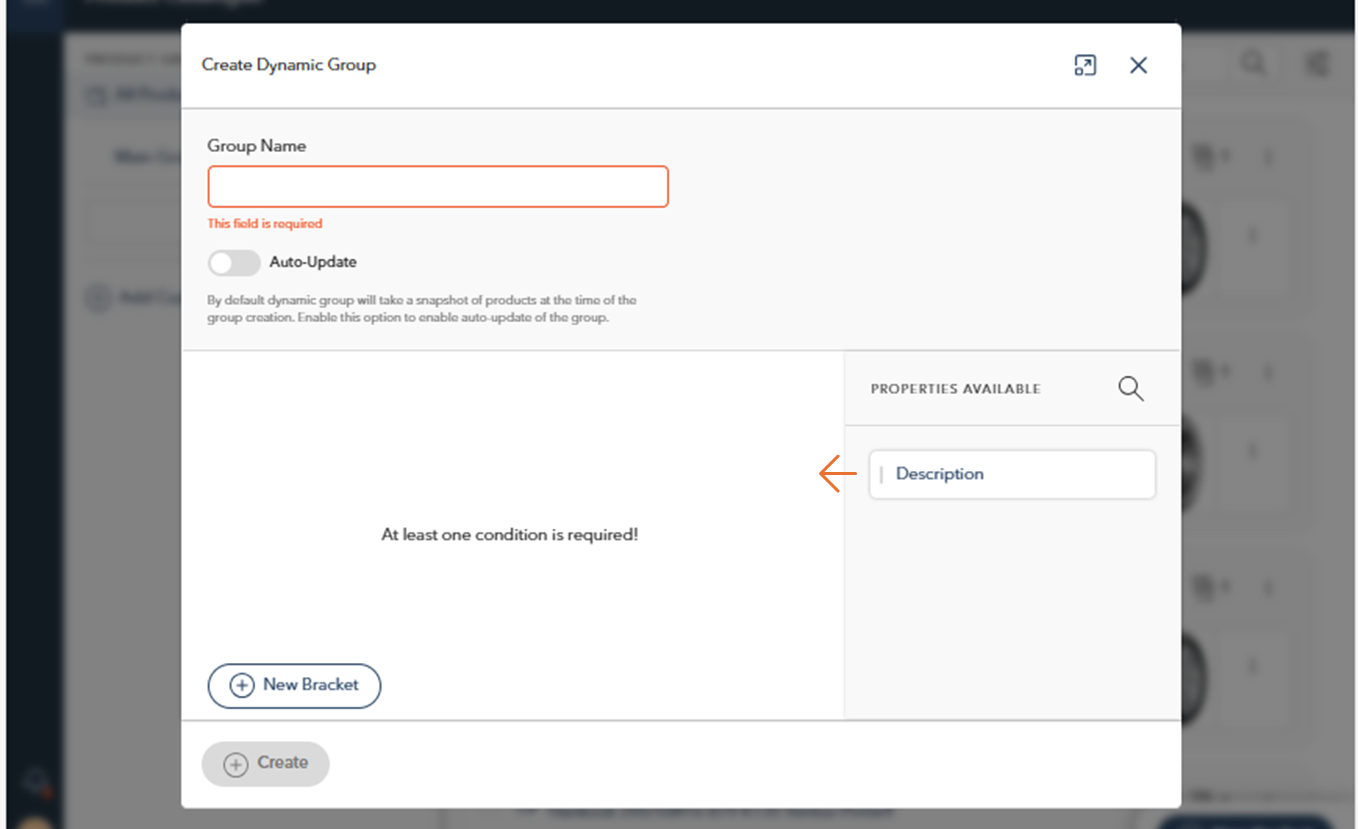
Dynamic Groups: You can create a dynamic group by specifying conditions such as product properties. Products that meet the defined conditions will automatically be included in the group. To define a condition, use the drag and drop feature to move available properties (e.g., Description) from the right side to the left panel. At least one condition is required to create the group.
Additionally, you can add more conditions by clicking on New Bracket, which allows you to group conditions together using the AND or OR operators. This gives you flexibility in defining more complex rules for the dynamic group.
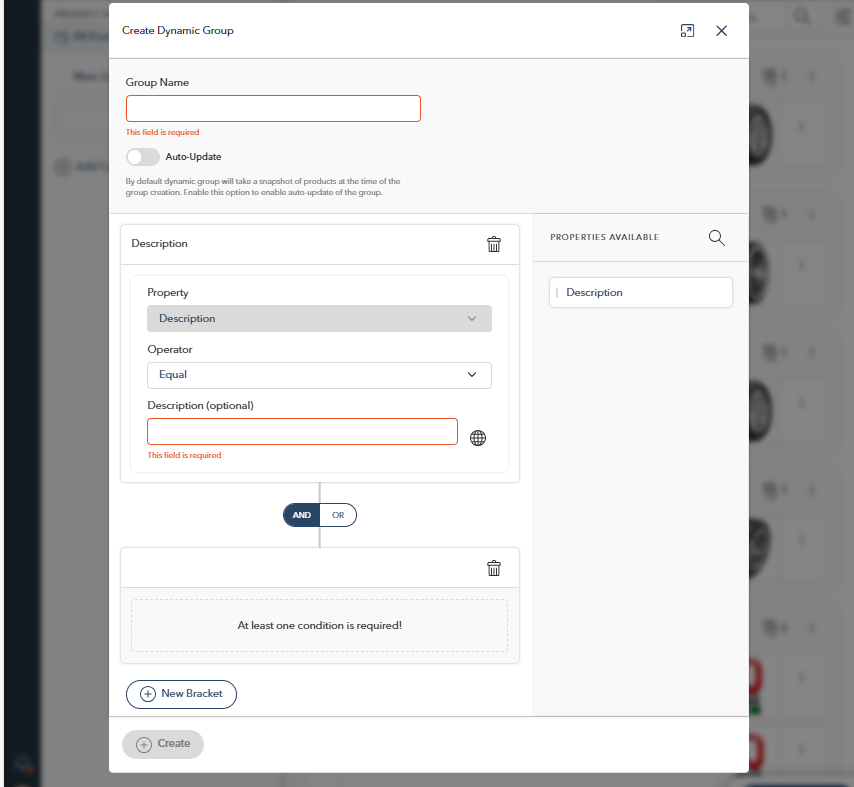
You also have the option to enable Auto-Update, which will keep the group updated as products are modified.
Products Overview
On the right-hand side, the Products section displays all product variants within the selected group. Each entry includes the product variant name and image, providing a clear overview of the items in the group. Additionally, the Actions Menu is available at two levels: for entire product groups and for individual product variants, allowing you to manage groups or individual items efficiently.
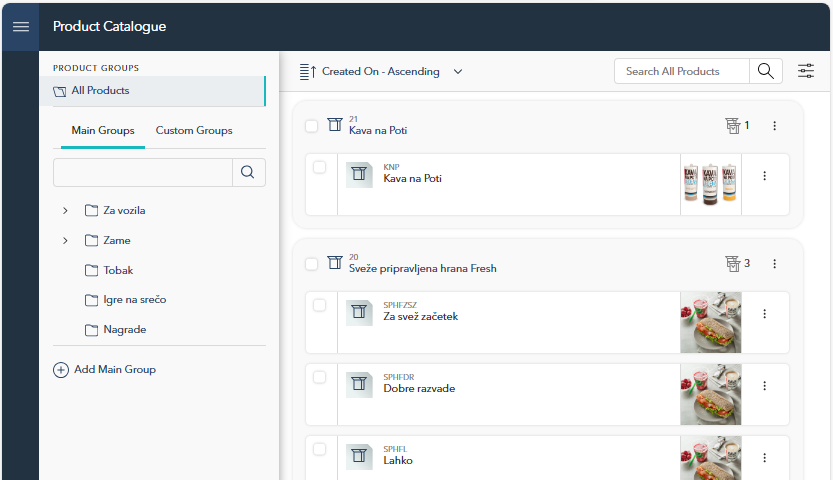

On the left-hand side of the product list, you will see the Product ID, which uniquely identifies each product. To the right of the product name and image, a number indicates the number of product variants available for each product.
Sorting, Searching, and Filtering Products
To quickly find or organize products, you have several options available:
Sorting: You can sort the product list using the dropdown menu at the top, which offers sorting by various criteria, such as product name or creation date.
Searching: To search for a specific product, use the search bar located in the top-right corner of the screen. Enter the product name or relevant keyword to narrow down the product list.
Filtering: Located next to the search bar is the Filter button. Clicking this opens a window where you can define specific conditions for filtering products. You can add conditions based on product properties, such as the product description or other attributes. At least one condition is required for the filter to be applied.
Product Details
After selecting a product by clicking on it from the list on the Products page, you'll be presented with the Product Details section. This section provides detailed information about the selected product and allows you to edit various attributes. The Product Details page is divided into two main tabs: Details and Product Groups, which help you manage both the core attributes and the groups associated with each product.
1. Details Tab
In the Details tab, you can manage the core attributes of the product, including:
Name, Code, and Description: These fields allow you to define and describe the product.
Custom Properties: You can add or create custom properties that offer flexibility in tailoring the product to specific business needs.
Product Variants: On the left-hand side, you can view and manage variants of the product, ensuring all configurations are accurately represented.
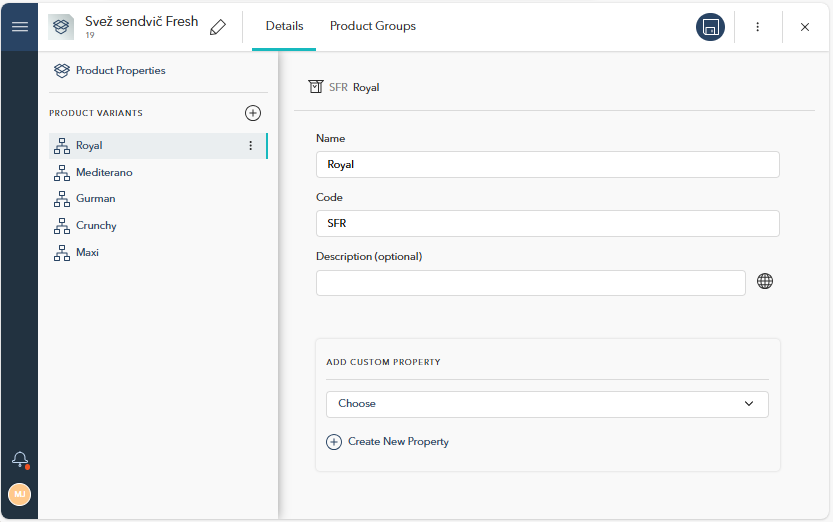
The Description field supports multilingual functionality, allowing you to provide a different description for each language. You can select the desired language by clicking on the globe icon next to the description field.
2. Product Groups Tab
The Product Groups tab shows all the main groups to which the product is assigned. It provides a hierarchical view of the product’s placement in various groups and subgroups, allowing you to see how the product is categorized within the broader catalogue.