
Gamification Management
Gamification
On the left-hand side, the Challenge Groups section displays all available challenge categories. Users can:
Browse and select specific challenge groups
Add new challenge groups using the + Add Challenge Group button
Expand nested categories to access sub-challenges within each group
Edit and delete each challenge
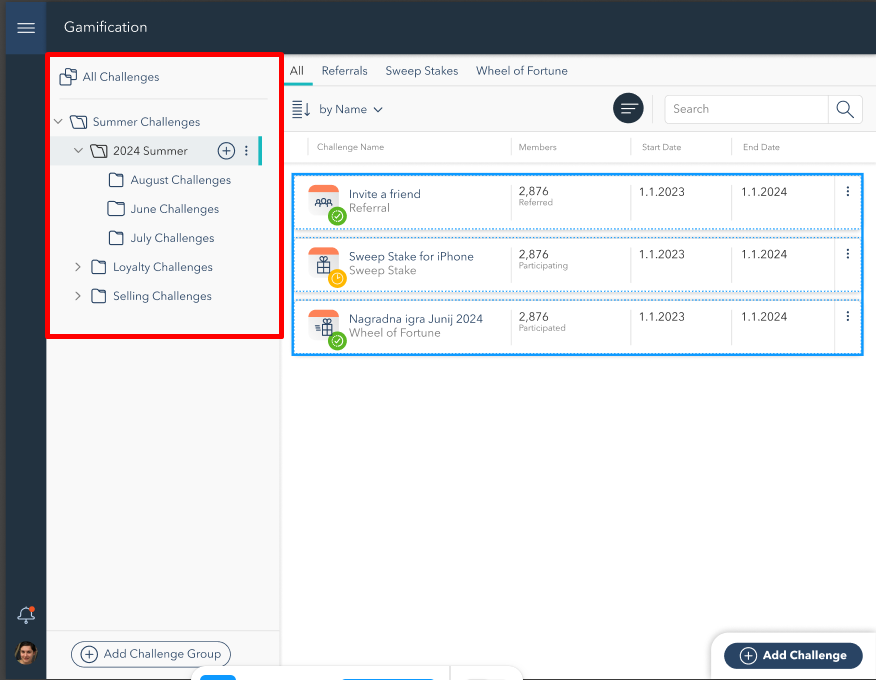
Gamification 1.0
On the right-hand side, the Challenges Section displays all challenges within the selected group. Each challenge entry includes:
Challenge Name
Type (Referral, Sweepstakes, Wheel of Fortune)
Number of m Members (Participants)
Start and End Dates
Status Indicators (Green Checkmarm indicates challenge is active, whereas yellow clock icon suggests the challenges is not active)
Finally on the bottom right corner there is Add challenge button, by which user can start creating new challenge. Creating of new challenge depends on the type of the challenge user is trying to create and will be explained next
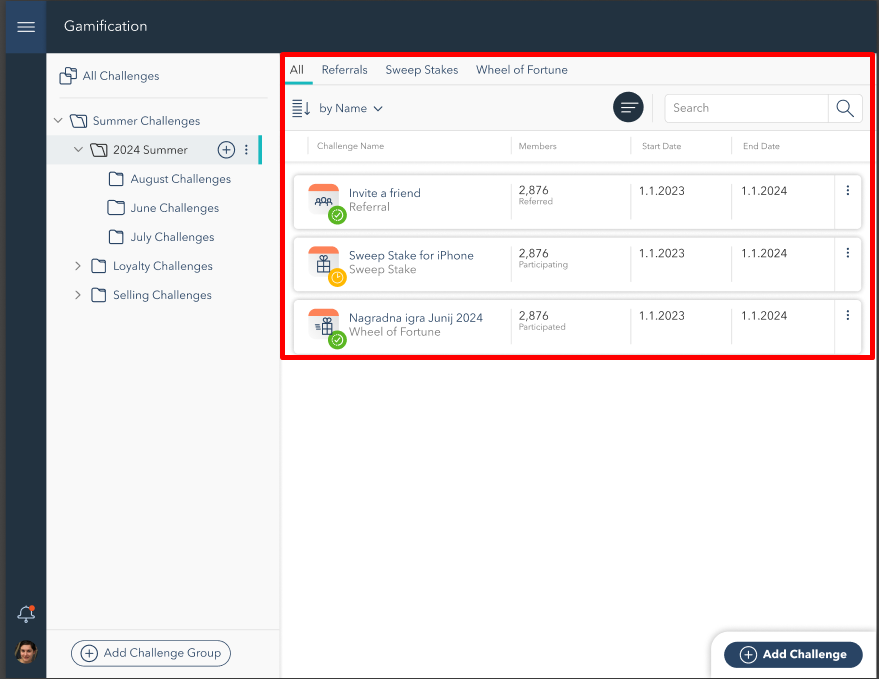
Gamification 1.1
Sorting, Searching, and Filtering Challenges
To quickly find or organize challenges, users have several options available:
Sorting: Use the sorting dropdown to arrange challenges by name, type, or participant count.
Searching: Utilize the search bar to find a specific challenge by entering its name or relevant keywords.
Filtering: Click the Filter button to refine search results based on challenge type, date range, or participant numbers.