
Adding / Importing Stores
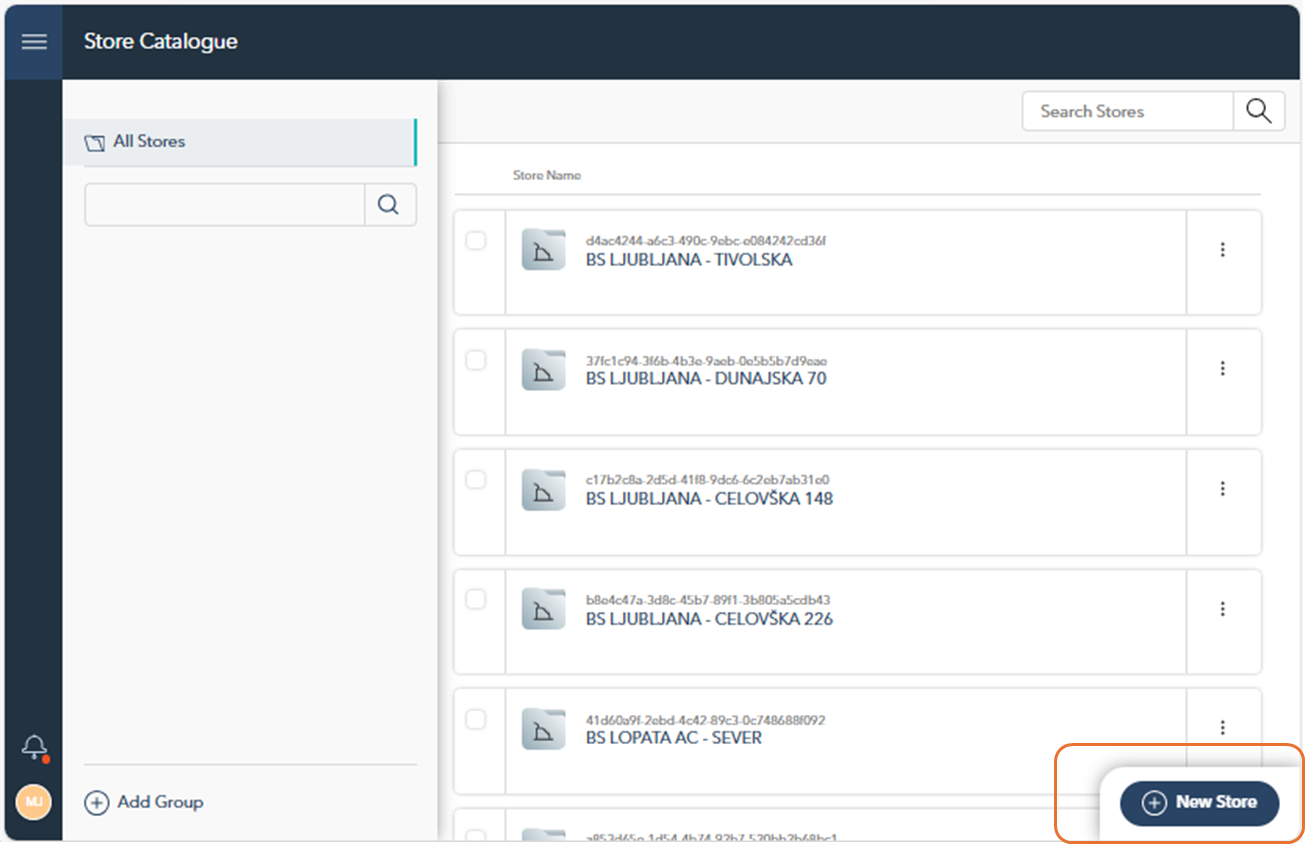
You can add a new store by clicking the "New Store" button located at the bottom-right corner of the screen. Once you click on the New Store button, the Store Details page will open where you can enter the store's information.
Enter Store Information
In the Details tab, you'll be asked to provide the following information:
Code: Enter a unique code for the store. This field is required.
Longitude and Latitude: Provide the geographical coordinates of the store's location. Both fields are required.
Available Features: Select the available features or services for the store by checking the appropriate boxes.
Once all required fields are filled in, you can further customize the store using the Add Custom Property section.

Note: The options available in the Choose dropdown menu are properties that have been previously defined in the Settings section under Store Properties. If a desired property is not listed, you can define it directly by clicking on Create New Property. This will provide a shortcut to the Settings section, where you can create a new property.